
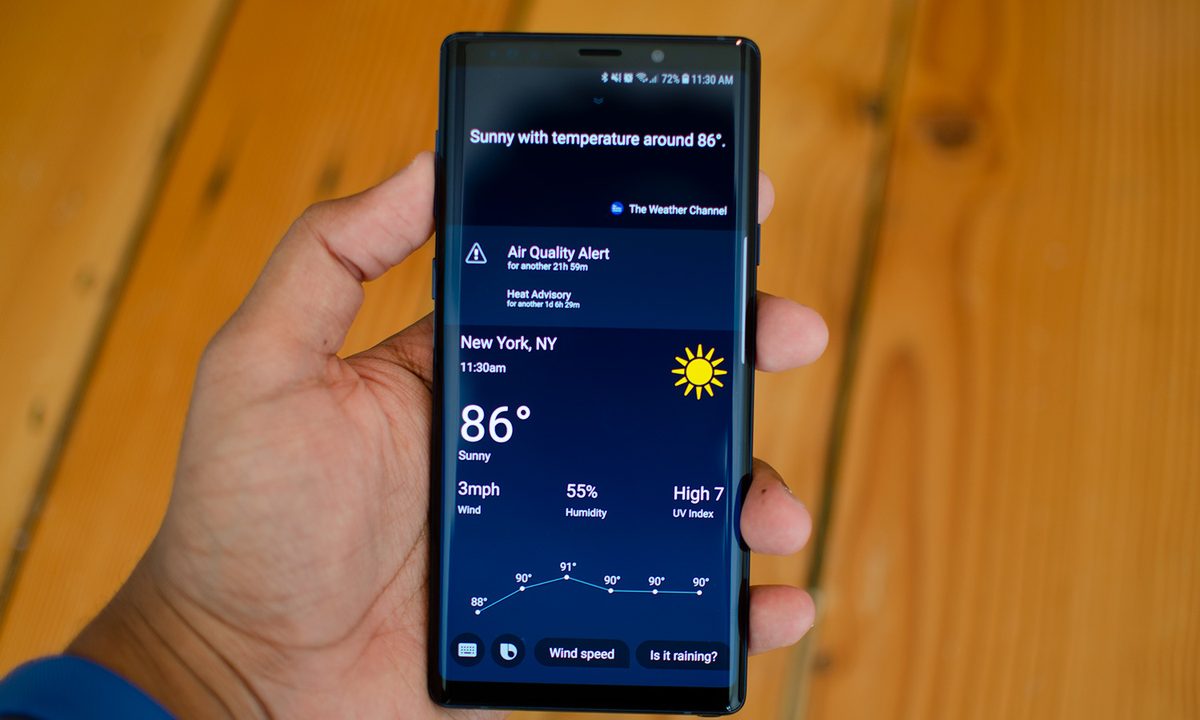
Virtual assistants are very common, and every phone manufacturer seems to have their own version. For Samsung phones, the assistant is Bixby. Samsung even has a special button to call up Bixby. Unfortunately, many users would prefer if this button did not exist.
If the Bixby button is driving you crazy, then it is time to learn how to disable it. Then you won’t have to worry about Bixby popping up when you’d rather it stay hidden.
How to disable the Bixby button (for Samsung Galaxy S20 and Note 10)
If you’re using a Samsung Galaxy S20 or Samsung Galaxy Note 10, the side key below the volume rocker functions as a Bixby button and a power button. By default, the side key will trigger Bixby with a long press instead of opening up your power-off menu, but that can be tweaked by accessing the side key settings.
Step 1: Press and hold the side key of the device.
Step 2: Tap on Side key settings.

Step 3: Toggle on the Power off menu under Press and hold.


Step 4: To fully disable Bixby on the side key, make sure Open Bixby isn’t toggled on under Double press.
How to disable the Bixby key’s single press (for Samsung Galaxy S10 and older)
You used to be able to disable the Bixby key on older Galaxy smartphones, but with software updates, that’s no longer the case. However, while you can’t stop the Bixby key from activating Bixby, you can make it harder to accidentally trigger by requiring a double-press to bring up Bixby Home. To do so, you’ll need to access a specific setting in a specific part of Bixby — as nothing tied to Bixby is allowed to be simple, apparently.
Step 1: Press the Bixby key to bring up the Bixby Home page.
Step 2: Tap the three vertical dots and tap Settings.

Step 3: Scroll down until you find the option titled Bixby key.

Step 4: Change your option to Double press to open Bixby to make it harder to accidentally open Bixby.

Reassigning the Bixby key (for Samsung Galaxy S20 and Note 10)
You can reassign the Double press function of the side key, but not with the Press and hold function. You can assign the function to open an app of your choosing instead of quick-launching the camera or opening Bixby.
Step 1: Return to the side key settings by pressing and holding it and tapping Side key settings.
Step 2: Toggle on Double press.
Step 3: Tap on the gear icon next to Open app.

Step 4: Select an app from the drawer of installed applications to assign it.

Step 5: The name of the app should be under Open app if done correctly.

Reassigning the Bixby key (for Samsung Galaxy S10 and older)
You can disable Bixby completely, but it’s easier to assign it permission to access specific apps so you can still take advantage of the features.
Step 1: Head back to Bixby Home and the area where you changed the Bixby key originally.
Step 2: Tap (or double-tap, if you’ve already changed the Bixby key) to open Bixby Home.
Step 3: Tap the three vertical dots.
Step 4: Hit Settings > Bixby key.
Step 5: If you haven’t already, you’ll need to enable Double press to open Bixby.
Step 6: Once you’ve done that, you’ll be able to select the single-press option. Turn it on by tapping the slider.

Step 7: Tap Open app to choose a single app to launch from your list of currently installed apps, or tap Run quick command to run a Bixby quick command when pressed.

Step 8: Tap Go to Quick commands after tapping Run Quick command to see a ton of good examples.

If you change your mind and decide to give the Bixby key another chance, you can reactivate it by selecting single-press. Reactivation sends it back to the basic setup, so you’ll lose your customizations, but you’ll have it ready to use in other ways.
Before you uninstall the app, consider undoing the changes you’ve made, restarting, and restoring it to its original state so you can take advantage of its other functions.


