
Remember when smartphone plans were all about call minutes and how many text messages you got, while the data was unlimited? Today, it’s exactly the opposite. At the point when carriers understood that customers really wanted was data, they switched gears to offer unlimited minutes and texts while capping data.
While carriers do offer unlimited plans — see our guide to the best unlimited plans — that freedom turns out not to be as free as we’d like, as customers often put up with unexpected charges, speed throttling, or hidden limits. Every megabyte must be accounted for, or you might find yourself paying an arm and a leg in overage charges, or having your connection speed throttled at the worst time. Here are some tips to help you reduce your data usage, watch your continued data usage, and maximize your data plans.
How much data do you need?
You will likely overestimate the amount of data you need, so stick to the facts to decide on which data allotment is best for you. Log in to your carrier’s website and review your data usage over the past few months. Select a plan that is higher than the amount of data you used during this period — but as close to that number as possible. A tool like Verizon’s Data Calculator makes it easy to get a rough estimate of your data usage, but we recommend basing it on your real-world use. Does your carrier offer a rollover data option? If so, you might even have extra data to fall back on in an emergency should you use more data than normal in a particular month. For more tips, check out our in-depth guide to choosing the right data plan for you.
Set data alerts and limits
You can check your data usage on iOS devices in iOS 14 by going to Settings > Cellular > Cellular Data > Current Period. Switch on Cellular Data, if it is not already. These data stats do not automatically reset for each billing period, so you have to remember to do it yourself. If you’re looking for a more tailored way of tracking data usage on your iPhone or iPad, some third-party apps are helpful. My Data Manager VPN Security tracks your usage and even allows you to set custom alarms when you exceed a certain amount of data in a month.
On Android 4.0 or later, you can check your data usage and also set alerts and limits. Go to Settings, and under Network & Internet, tap on Data Usage or Mobile Data (you might need to look around on different Android phones, but it should still be under your Network settings). On a Samsung Galaxy, you will want to go to Settings > Connections to find Data Usage.
You will see a table showing your data usage for a specific period of time. You can toggle Set Mobile Data Limit and then move the black and red lines to set alerts. The black line will trigger a notification that you’re approaching your limit, while the red line represents the threshold where your Android device shuts off cellular data. Android has some apps tailored to tracking your usage, but Android’s built-in controls are good enough that you shouldn’t need to use anything but the baked-in settings.
Another option is using your carrier’s mobile apps. How your carrier accounts for your data usage might be different than what iOS and Android say, so we recommend you keep an eye on your data here for the most accurate information. You should also consider turning mobile data off whenever you don’t need it.
Use Wi-Fi wherever possible

If there’s Wi-Fi available, use it. Chances are at home, work, and certain public places, you’ll have some type of Wi-Fi available. Some outlets may require you to accept terms and conditions in order to connect, but many do not, and once you connect the first time it will connect automatically when you’re in range. Get in the habit of checking when you’re somewhere new, and this will lead to a substantial drop in cellular data usage.
Some carriers offer hot spot networks. AT&T offers connectivity through a network of hot spots (see this Wi-Fi hot spot locator map), Verizon also offers a similar service, and T-Mobile offers hot spot usage for a monthly fee. Even if you don’t have hot spot access from any of the above, you can still take advantage of the hundreds of thousands of free Wi-Fi hot spots around the world. We advise you to use a VPN if you’re going to risk connecting to public Wi-Fi networks.
Limit background data

Background data is one of the biggest drains on your data allotment that you may not know is happening: Mail syncs new messages as you receive them, or your phone automatically downloads all new app updates. Can all of this activity wait until you can connect to Wi-Fi? Find out what apps and services are using cellular data and make any necessary changes. In iOS 14, this is located under Settings > Cellular or Mobile data, and in Android 10, under Settings > Network & Internet > Data Usage or Settings > Connections > Data Usage on a Samsung. On an iPhone, you can toggle off individual apps that are using too much data and you can go to Settings > General and toggle off Background App Refresh, or set it to Wi-Fi so it will not use your cellular connection for app updates.
If you see individual apps that are chewing through too much data on Android, tap on the app and consider toggling Background Data or Allow Background Data Usage off — just be aware that it will limit the app’s ability to update in the background. Consider opening up the Play Store, tapping the three-line menu at the top left, and then tap Settings > Auto-update Apps and choose Auto-update Apps Over Wi-Fi Only. You can also look in Settings > Accounts and toggle off Auto-sync Accounts.
Take maps offline
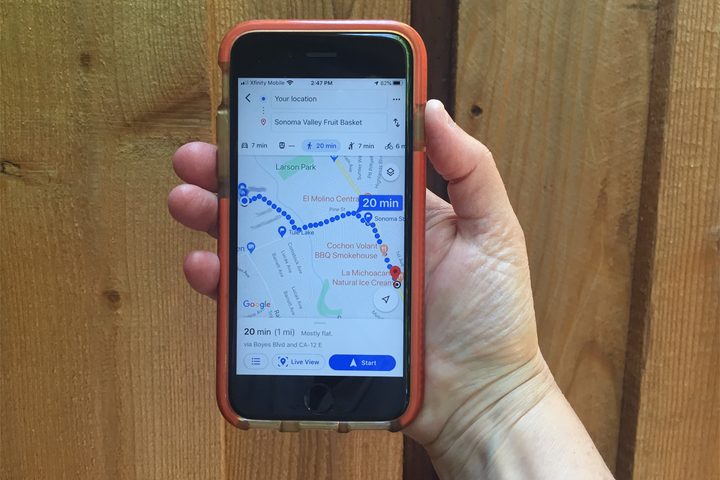
Navigation apps can take up a huge chunk of data. If you use them all the time — to find specific shops or restaurants — or if you’re in a new city, consider downloading the area map ahead of time. On Android, this is simple. Just boot up Google Maps, search for the area you want to download, then tap the info at the bottom of the screen, and when the three-dot menu appears at the upper right, tap and find Download Offline Map.
You can do the same in iOS by tapping at the upper right of the search menu to access the Offline maps dialog. Alternatively, you can load a route ahead of time, and Apple Maps’ cache will remember the way without needing a data connection. Simply enter your route in as normal while on Wi-Fi, allow it to load fully, then exit your app and turn off your data connection. If relying on the app’s cache is a bit scary, Apple Maps also allows you to export area maps as PDFs, which you can print.
Change your browsing habits
It’s always better to browse the mobile version of the website on a mobile device, so avoid using the desktop versions of a site if you can. Also, despite taking up a fair amount of storage on your phone, the browser cache is actually a good thing here. By preserving your cache, you won’t have to download images from frequently visited websites every time you visit them. If you’re using Chrome, then you can tap the three-dot menu at the top right, choose Settings and turn Data Saver on and it will automatically compress pages before downloading them. Also consider a browser like Opera Mini (Android or iOS), as it’s designed to compress data and dramatically reduce your usage when browsing.
Subscribe to streaming services with offline options

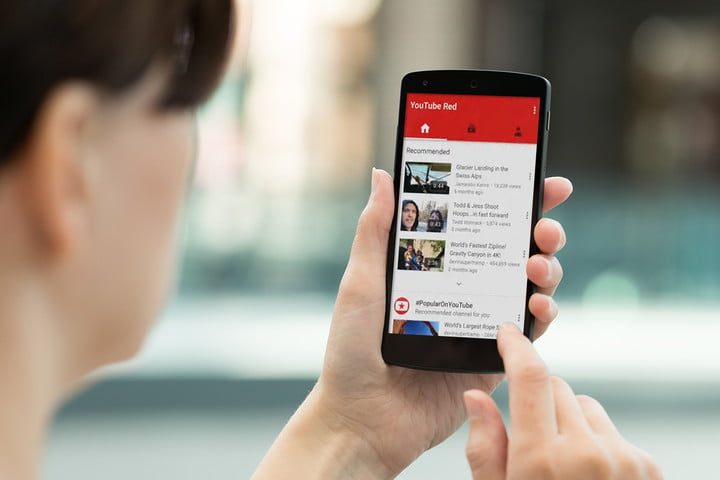
Videos are a huge drain on your data, so if you stream a lot of YouTube content, then consider YouTube Premium, which costs $12 per month. In addition to the option of saving videos onto your device, it also includes a built-in music service. Apps like Apple Music (Android or iOS), Google Play Music (Android or iOS), and Spotify (Android or iOS) allow you to create playlists for offline listening, but you will need some space to store them. Spotify even lets you download all your saved songs — and save a decent chunk of streaming. If you’re a fan of listening to podcasts on the move, consider getting a podcast app like Pocket Casts (Android or iOS). It has a huge library of available podcasts (including some of our favorites), and offers an option to wait until you’ve connected to a Wi-Fi network before downloading new episodes.


