
We all know that texting can be a bit impersonal. Sometimes emphasizing what you mean in plain text is just too darn hard. Sure, the Messages app now provides a huge library of options ranging from inserting GIFs to creating personal avatars. But what if you want something explosive and eye-catching like fireworks? That’s where Apple’s hidden effects come in.
This guide shows you how to send iMessages with effects for iOS and iPadOS (sorry Mac). However, the effects only work with iMessages, meaning recipients with Android phones won’t see the cool animations. Not sure if the recipient has Android? Remember that iMessages have blue bubbles and SMS text messages have green bubbles.
Use Bubble effects


Sometimes you may want to drive a comment home without using emojis or full-screen animations. That’s where the Bubble effects come in. They only apply to your text bubble and consist of Pretty, Loud, Gentle, and Invisible Ink.
Step 1: With a new or current message open, tap your message in the text field. You won’t see options for using effects until you do.
Step 2: Tap and hold the Send button in the text field. It resembles an Up arrow as shown above.
Step 3: The Send With Effect screen opens to the Bubble category by default. Tap the Dot next to the effect you want to apply.
Step 4: The dot switches to a Send button (up arrow). Tap that button to send the text with the effect applied.
Use Screen effects


These effects are incredibly fun and provide a range of cool animations that splash across the entire screen. Trying to share some exciting news? Share it with the Fireworks effect and watch a New Year’s-worthy fireworks show shoot across the screen. Really trying to drive a point home? Share it with Echo and your message will replicate itself about 100 times across the screen.
These full-screen effects consist of Echo, Spotlight, Balloons, Confetti, Love, Lasers, Fireworks, and Celebration.
Step 1: With a new or current message open, tap your message in the text field. You won’t see options for using effects until you do.
Step 2: Tap and hold the Send button in the text field. It resembles an Up arrow.
Step 3: On the following Send With Effect screen, you will see two categories: Bubble which opens by default, and Screen. Tap the Screen category.
Step 4: Swipe a finger left or right to preview and set the full-screen effect.
Step 5: Tap the Send button (up arrow) to send your message with the full-screen effect.
Send a handwritten note
While it’s not technically an effect, we think this is a neat and often overlooked feature within Messages.
Step 1: Swipe down from the top to open the Control Center and make sure Portrait Orientation Lock is tapped Off (iPhones only).
Step 2: Open Messages.
Step 3: Rotate the phone to landscape mode (iPhones only).
Step 4: Tap within the text entry field to load the virtual keyboard.
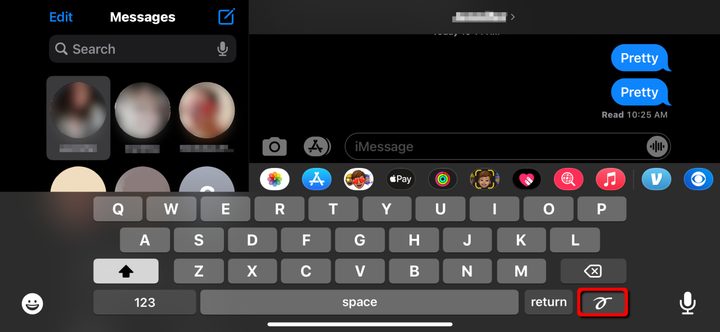
Step 5: Tap the Handwriting button located in the bottom right next to Return.
Note: This button appears in both orientations on an iPad.
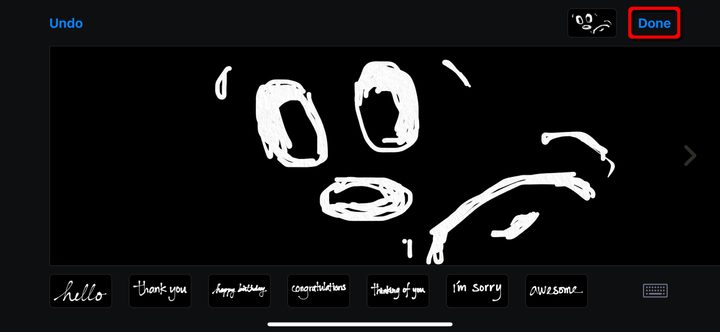
Step 6: Use your finger to draw or write. If you need more space, tap the right arrow on the right side of the screen. Use two fingers to swipe back to the first screen.
Note: You can also tap a selection of prerendered messages, like Hello and Thank You, under the drawing board.
Step 7: Tap Done to complete.
Step 8: Tap the Send button to send your hand-written message.


