
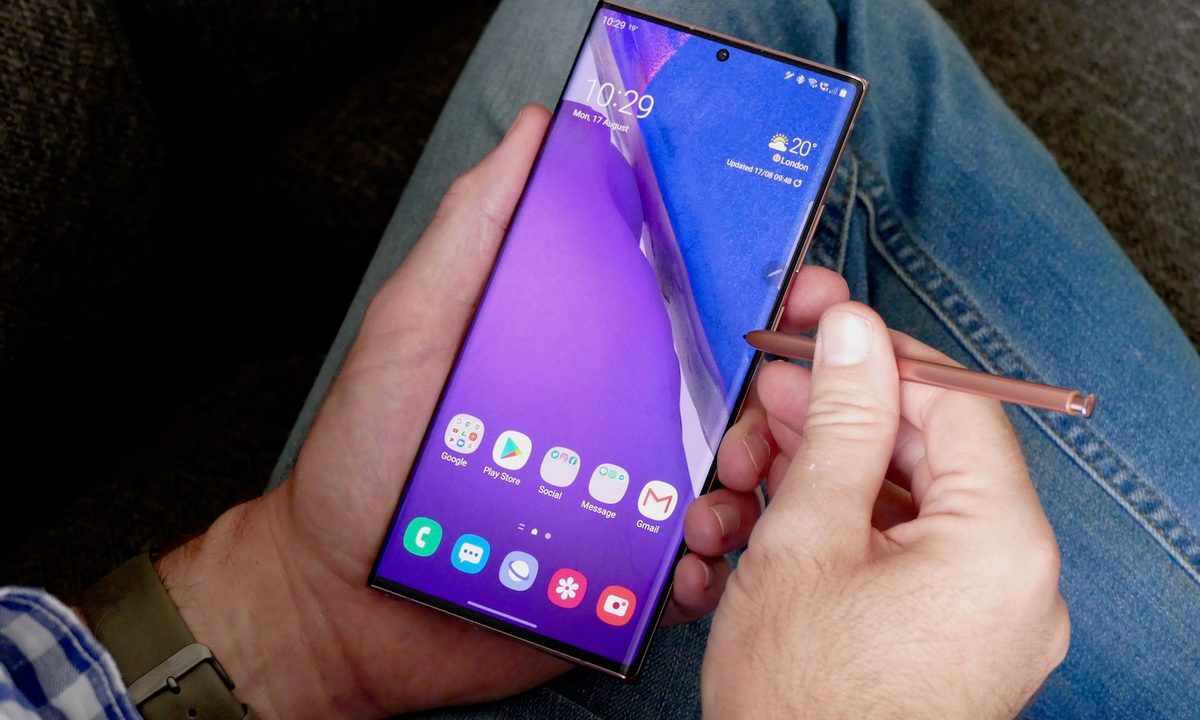
Taking a snapshot of your Android phone’s screen is easy, and there are all sorts of situations where a screenshot could come in handy, whether it's showing how to toggle a setting or pictorial proof of your latest high score.
This guide covers the latest Samsung Galaxy S21 and Note20 Ultra, though previous models will follow similar procedures. We’ve also included a guide to taking a screenshot on any other Android device, from the most recent units all the way back to those with Android 2.3.
Samsung phones
Here are different ways you can take a screenshot using a Samsung phone.
Swipe the screen
You can take a screenshot by swiping the side of your hand across the screen in either direction. This method does not apply to all Samsung phones, but should be available on flagship models like the Galaxy S21 Ultra.
Enable Palm Swipe
First, check to see if your phone even supports this feature — the Galaxy A10e does not, for example — and if it’s toggled on. Note that if the swiping feature becomes a nuisance, you can come back here to toggle it off.
Step 1: Swipe down from the top to open the Notifications Shade and tap the Cog icon. This opens the device settings.
Step 2: Tap Advanced Features.
Step 3: Tap Motions and Gestures.
Step 4: Tap the Toggle next to the Palm Swipe to Capture setting to turn this feature on.


Take the screenshot
With Palm Swipe to Capture toggled on, you can now take a screenshot with a simple swipe. It may take a few tries, but practice makes perfect.
Step 1: Set your hand on one side of the screen with the pinky side touching the device and your thumb pointing up.
Step 2: Swipe your hand left or right across the screen like a scanner.
Step 3: You should feel a vibration, see the screen flash, and receive a notification that a picture was saved to the gallery.


Use the button shortcut (Home button)
Not everyone is a fan of gesture controls. Thankfully, some Android phones offer a more tactile method for capturing a screenshot.
Step 1: Press and hold the Power button slightly before pressing the Home button. This can be awkward to get right.
Step 2: Hold both buttons for a second, until you feel a vibration or see a visual indicator.


Use the button shortcut (no Home button)
If you have a Galaxy S21, Galaxy S20, or Galaxy Note20, which don’t have a physical Home button, then the key combination is a little different:
Step 1: Press and hold the Power and Volume down buttons simultaneously until the screen flashes and you hear a click.
Step 2: To find the screenshot, open the Gallery or Photos app on your phone. In Samsung’s Gallery app, you can find it in the Screenshots folder after tapping the Albums tab at the bottom.
Use the S Pen
This technique is available on the Galaxy Note20 Ultra and other Samsung devices with an S Pen.
Step 1: Remove the S Pen stylus and tap the Air Command menu icon.
Step 2: Tap Screen Write to take a screenshot.
Step 3: Modify the screenshot as needed. You can write notes, change your pen color and size, erase or undo strokes, crop the image, and so on.
Step 4: When you’re finished, tap Share or Save at the bottom.

Use scroll capture
These instructions apply to web pages that are longer than your screen.
Step 1: Press the Power and Volume Down buttons simultaneously.
Step 2: Tap the Downward arrow icon (Scroll Capture) displayed on the Smart Capture menu.
Step 3: The icon will bounce up and down. Tap the Icon to begin capturing the screenshot.
Step 4: Continue to tap the icon until you reach the bottom or capture everything you need.
Step 5: Add tags if needed and then tap Save.
Step 6: To save the screenshot, tap outside the Smart Capture overlay.
Use your voice
You can capture a screenshot using Bixby Voice or Google Assistant by saying “OK, Google, take a screenshot” or “Hey Bixby, take a screenshot.” You can also string commands together such as “Hey Google, take a screenshot and share it on Facebook” or “Hey Bixby, take a screenshot and share on Twitter.”


