
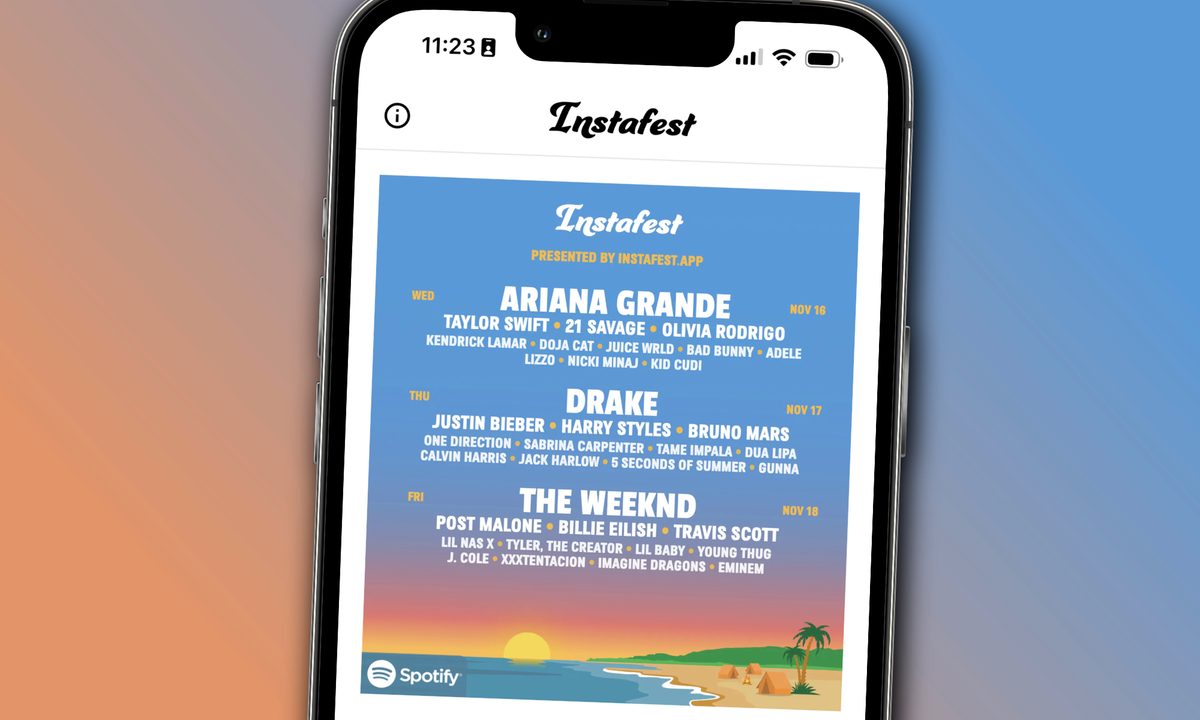
If you're on any form of social media, you've likely seen people posting their own custom music festival lineups based on their most-played artists on Spotify. If you head to the Spotify app, however, you won't find the festival-making tool that everyone is using.
While Spotify offers plenty of fun end-of-the-year features for subscribers to enjoy, such as the annual Spotify Wrapped playlists, the fantastical festivals come from a free, third-party app called Instafest. Luckily, anyone with a Spotify account is able to use it to make a customized festival lineup. If you're looking to join in on the fun and make a unique festival of your own, or just see who your most-played musical artists are, follow the steps below to create your own Instafest lineup.
What is Instafest?
Before you use Instafest, you're probably wondering what it actually is. And that's a fair question!
Instafest is a free, third-party website created by developer Anshay Saboo. In an interview with TechCrunch, Saboo told the publication that the idea for Instafest came about when he was thinking about Coechella.
Per Saboo, "I had the idea when I was in bed scrolling through TikTok one day, I saw people were posting videos from Coachella and I started thinking about how I would set the Coachella lineup if I could pick the artists."
Instafest is 100% free to use and accesses your Spotify account using the service's official APIs.

How to make an Instafest Spotify festival
As mentioned above, you'll need an active Spotify account in order to use Instafest. If you don't currently have a Spotify account, you can sign up for free. However, because Instafest takes a look at your listening data, you'll need to use the streaming app for a while before it can make a festival that's personal to you and your favorite artists.
It's also worth noting that if you're not a frequent music listener, you may not get the three-day festival that most people are posting about since you may have fewer artists for Instafest to choose from. If that's the case, you may only get a single- or two-day lineup.
The steps below can be followed on either a smartphone or a computer.
Step 1: Go to www.instafest.app and select Sign in with Spotify.

Step 2: Enter your Spotify login information and then select Login.

Step 3: Review the privacy information that pops up and select Agree.

Step 4: View your personalized lineup and customize it by scrolling down and selecting any of the options under the Customize heading. You can change the artists on the lineup based on your listening habits from the past four weeks, six weeks, or your all-time most-listened artists. You can also change the style of the graphic and hide your Spotify username if you want.

Step 5: Select Save and share underneath the festival graphic.

Step 6: Select either Download or Share. Download saves the image if you're using the app on a computer. If you want to save the image to your camera roll when using a smartphone, select Share > Save Image. You can then select how you want to share the graphic, whether that's by texting it directly to someone or sharing it on a social media platform.

Does Instafest work with Apple Music?
While Spotify is how most people have been using Instafest, it's not the only music service the website supports.
In addition to Spotify, Instafest also works with Last.fm. And coming soon, Saboo has confirmed that Apple Music is the next service you'll be able to use Instafest with. You can't currently use Instafest with Apple Music, but it looks like you won't have to wait too much longer for that to change. And in the meantime, you can use Apple Music Replay to get a nice overview of your listening stats.
Is Spotify Wrapped the same as Instafest?
Instafest can be a lot of fun, but it's far from the first service to round up your listening history like this. Perhaps the most popular way to look back at your Spotify activity is Spotify Wrapped.
Toward the end of each year, Spotify launches its Wrapped program to offer a detailed overview of how you used Spotify during the past year. Spotify Wrapped is not the same as Instafest, but it is another feature you should use if you want an interesting overview of your Spotify listening.


