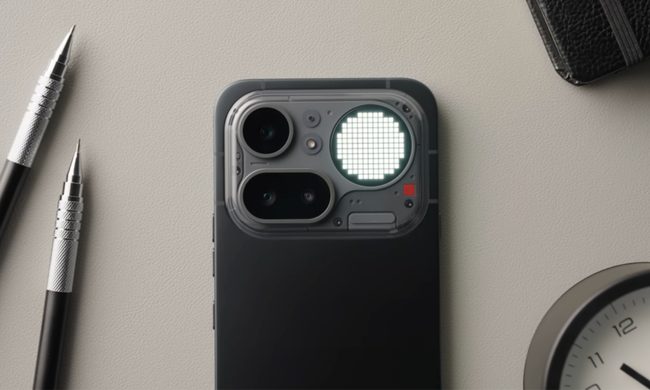
Love it or hate it, there’s no escaping the daylight savings time rigamarole. That’s right, it’s that time of year once again when the leaves are changing, the weather’s getting colder, and we all have to set our clocks back an hour.
The date to mark this year is Sunday, November 2 2025, when daylight saving time officially ends, and you’ll need to set your clocks back an hour.
However, it’s important to know whether your phone will automatically change to daylight saving time or if you need to do it manually. It’s a question that applies regardless of which phone you have. Whether you’re rocking an iPhone 17, Google Pixel 10, Samsung Galaxy S25, or any other smartphone, it’s essential to know whether or not you need to change it for the new time.
Before the advent of smart devices, we manually changed the clocks to adjust for either daylight saving time or standard time. However, some clocks, such as wall clocks, oven clocks, and car clocks, are still non-internet-connected and require manual adjustment.
If your smartphone’s software is up to date, its clock should automatically adjust. But if you had previously customized the date or time settings, you might have to update your clock manually to ensure it’s ready. Here’s everything you need to know to help ensure a smooth transition:
When is daylight saving time?
Clocks will be going an hour back at 2 a.m. on Sunday November 2 2025 in North America. Right before your phone clock hits 2 a.m. on Sunday, it should automatically update. However, in some rare cases, it may not be updated. If that’s the case, you’ll find instructions below on how to fix it.
As for when the clocks go forward again for the dreaded one-hour loss of sleep? That won’t happen until Sunday March 8, 2026, so there’s plenty of time before you have to worry about that.
How to update your iPhone when daylight saving ends
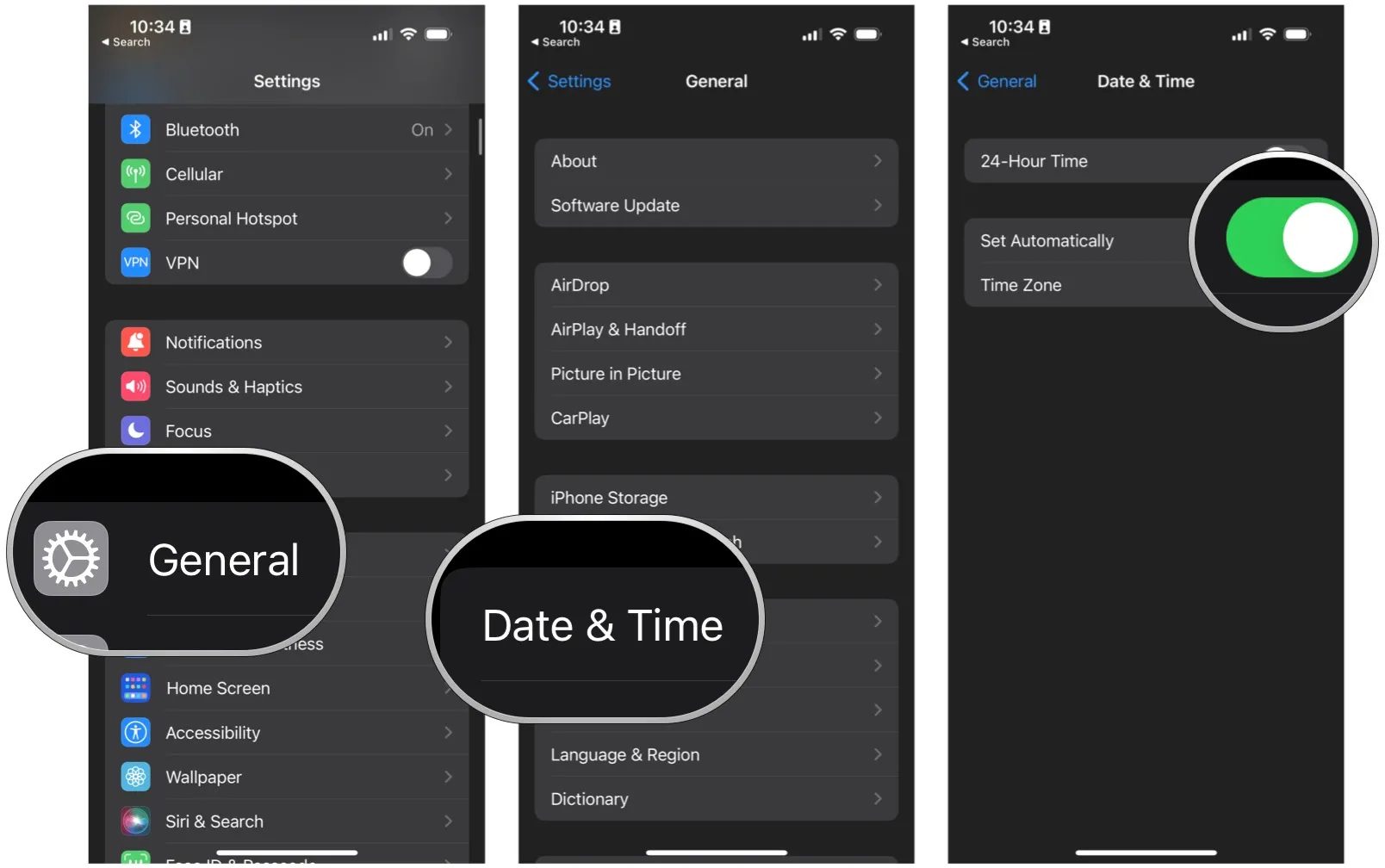
First, let’s look at how to update the time on the iPhone. If you have an iPhone, like the iPhone 16 Pro, go to the Settings app, select General, then Date & Time, and toggle on Set Automatically.
Once that’s done, your iPhone time will automatically update — no extra work from you is required! When daylight saving begins, your iPhone won’t skip a beat.
How to update your Android phone when daylight saving ends
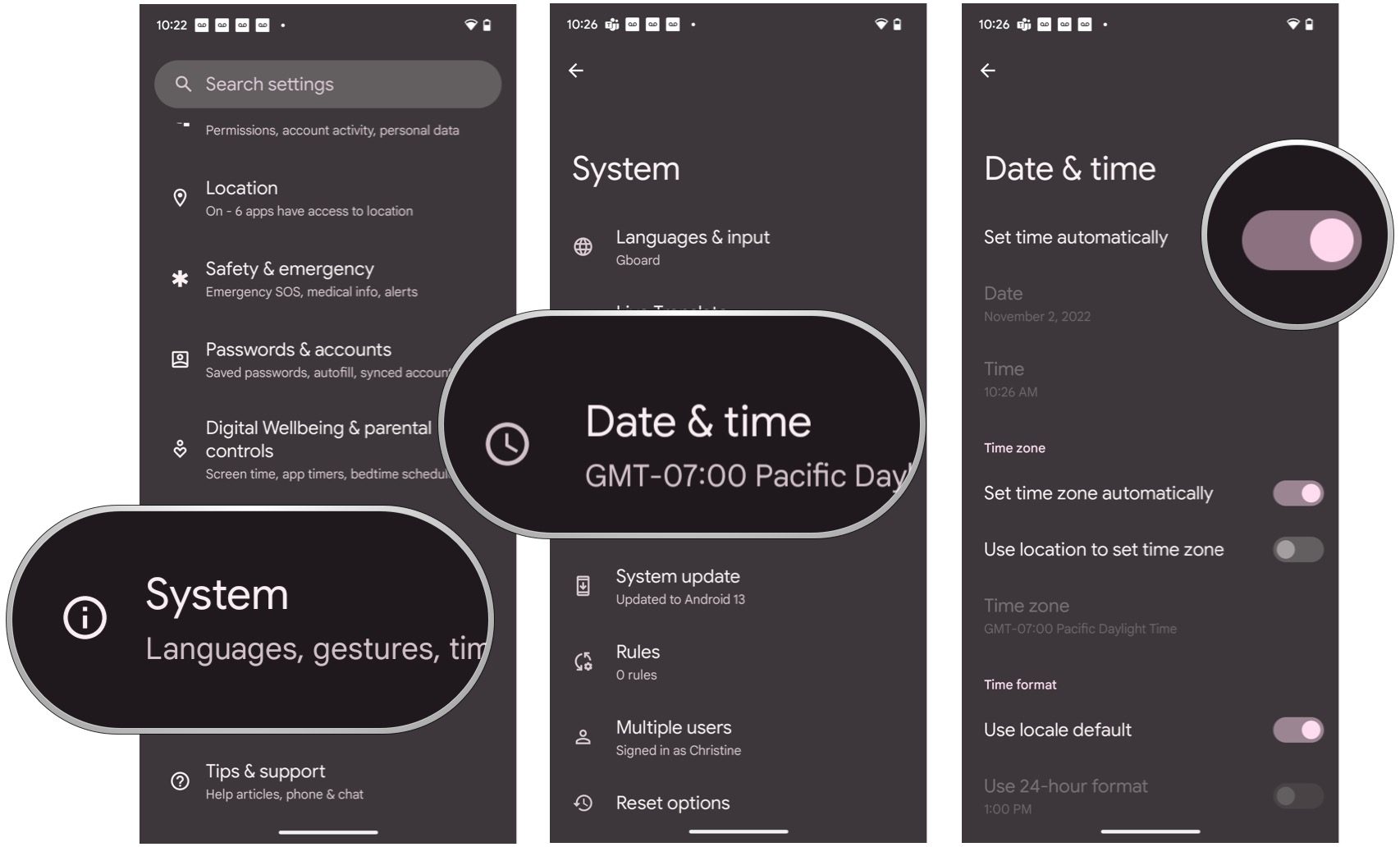
The process for Android is mostly the same, though it follows a slightly different process. On an Android phone like the Google Pixel 10 Pro, go to Settings > System >Date & Time, and toggle on Set Automatically.
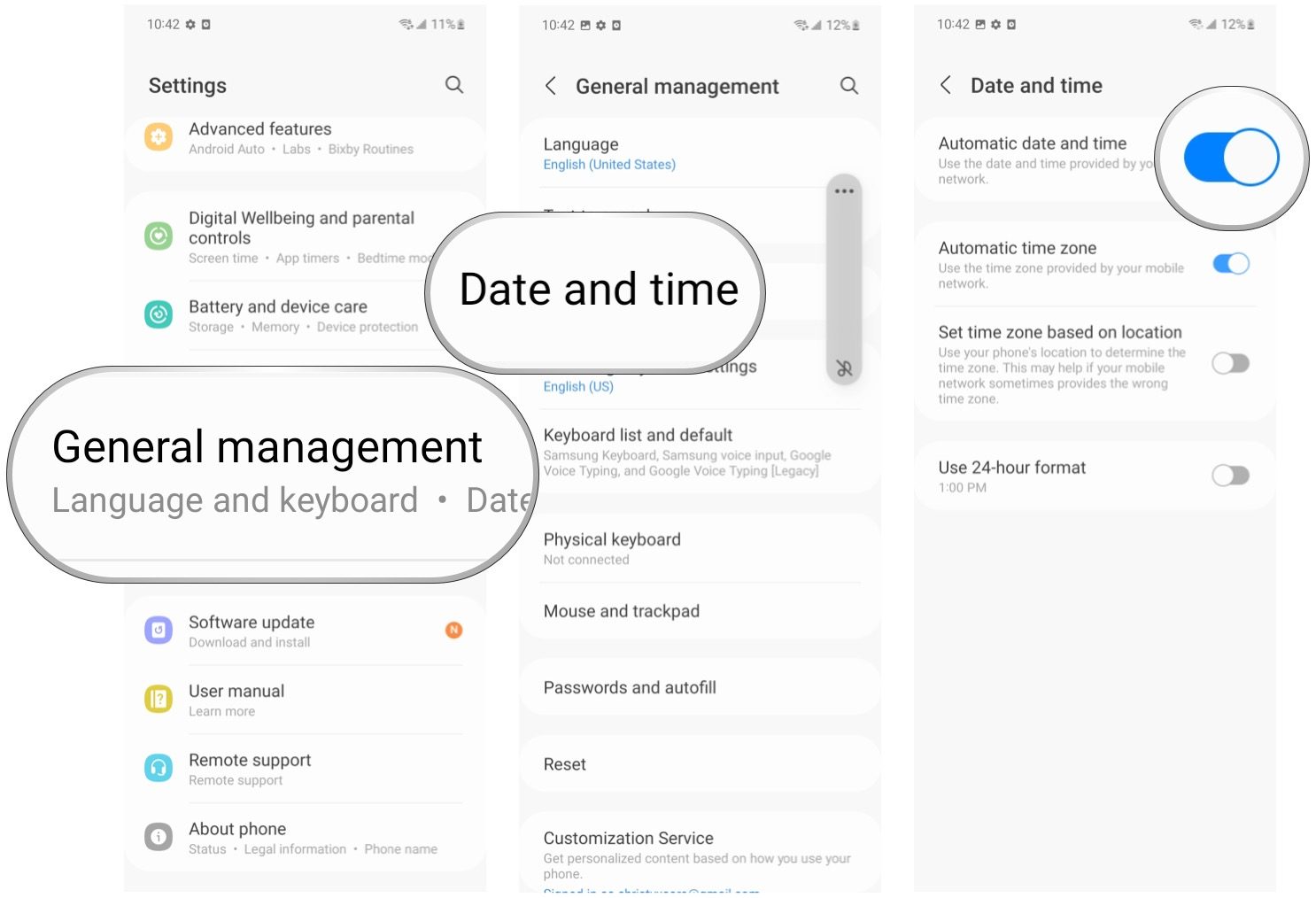
On a Samsung phone, like the Samsung Galaxy S25 Ultra, you’ll need to follow a slightly different path. Go to Settings > General Management > Date and Time, and make sure Automatic Date and Time is turned on.
With these settings configured, your Android phone is prepped and ready to automatically change the time once daylight saving time begins for another year.
Other daylight saving phone tips
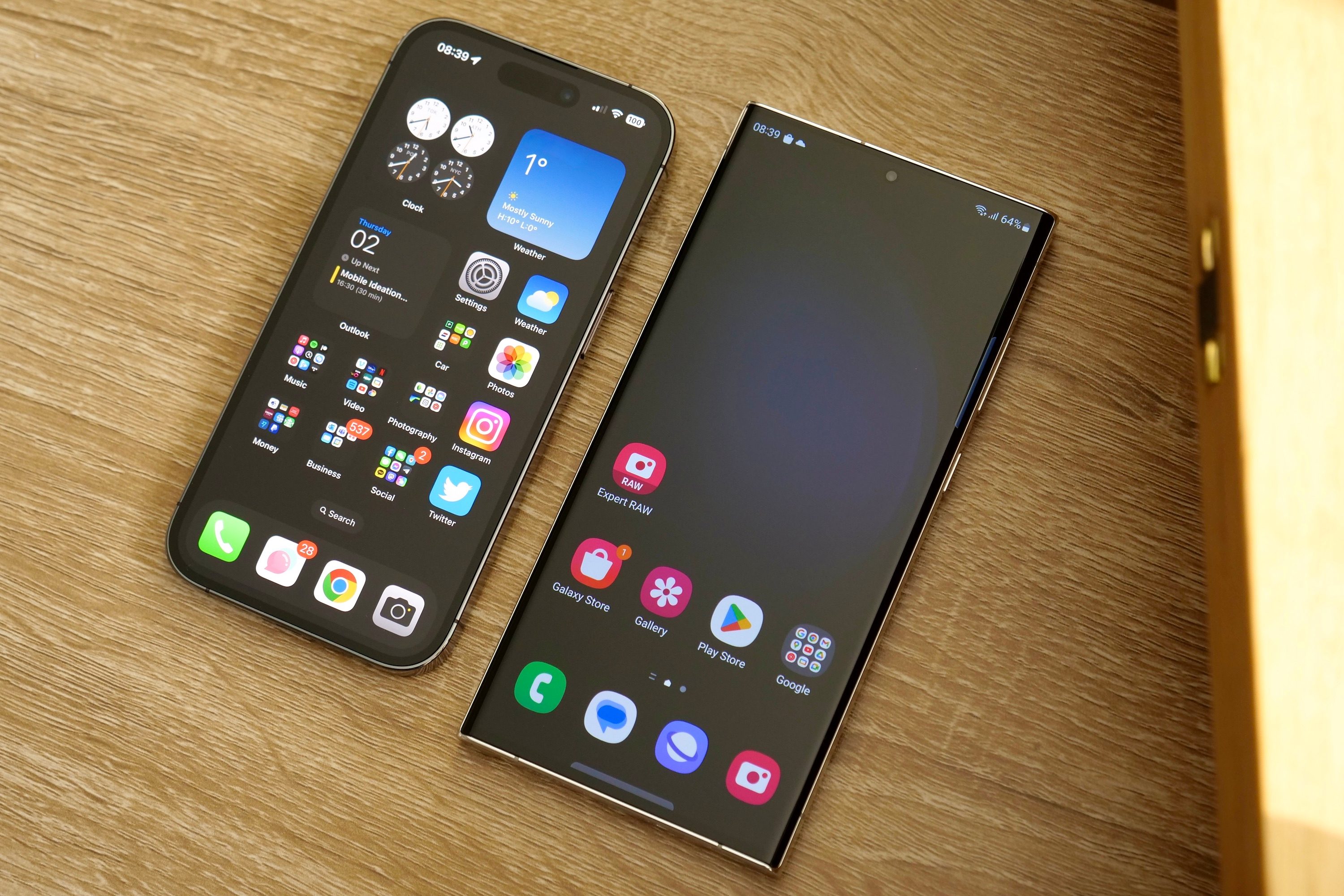
Although the above steps should be all you need to worry about, there are some other things you can do to be extra sure your phone changes when it should for daylight saving time.
If you haven’t updated your phone in a while, ensure it’s running the latest available software. Open the Settings app on an iPhone, tap General, and then Software Update. If you have an Android phone, go to the Settings app, scroll down the page, and tap on Software update or System update (the wording will be slightly different depending on which Android phone you have).
Outdated software shouldn’t impact your phone automatically changing for standard time, but installing an update if one is available doesn’t hurt. If you have any alarms set on your phone, they’ll also automatically update to the new time without any extra work required from you.
As for those of us who refuse to bother changing more manual clocks like the ones on our microwaves and cars? Our time will come next year, when the clocks go forward again, and we’ll have fewer devices to worry about. Praise procrastination.