
The LG G4 is one of the best TVs we’ve had in the studio all year. Whether it’s that top-tier model (or the C4, B4, or any of LG’s TV’s), we want to help you get the best and most desirable picture for all of your viewing needs.
Get ready to dial in the settings for your LG TV, from turning off features that are holding your set back to squeezing out every bit of its brightness.
Turn these features off now
Some features may prevent your TV from delivering its best, and we recommend turning them off.
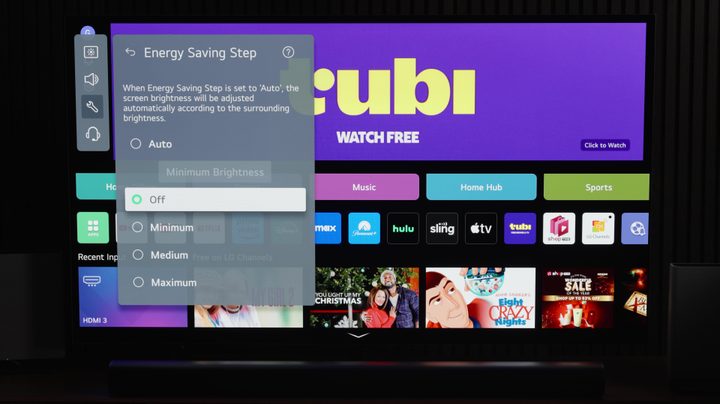
The first change we recommend: Disable the Energy Saving feature. (Note: We very much care about the Earth, but we also care very much about your viewing experience.) If you don’t want the TV to limit how bright it gets, turn this feature off. On your remote, press the Settings button, then the Settings cogwheel in the top corner of the screen. Then navigate down to General, down to Energy Saving, and then Energy Saving Step. We recommend turning this Off entirely.
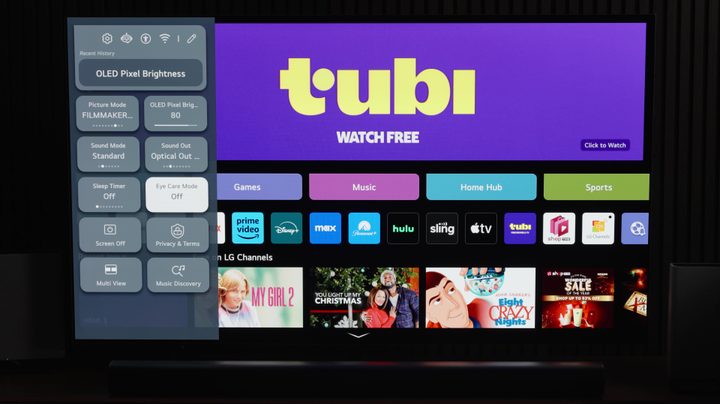
When it comes to Picture Settings, disable Eye Comfort Mode. On your remote, press the Settings button, and in the quick menu, head down to Eye Comfort Mode and turn it Off. This is also known as the Reduce Blue Light setting, and can be found by pressing the Settings cogwheel in the top corner, going to Picture, down to Advanced Settings, and then down to Reduce Blue Light. When this setting is turned On, the display can shift a bit too warm.
Set the perfect picture mode, best brightness
The easiest way to access picture modes is to press the Settings button on your remote and head down to Picture Mode. Here you can cycle through all of the options. Alternatively you can select Picture (see the previous section) and then Select Mode. Cinema and Filmmaker Mode are great choices.
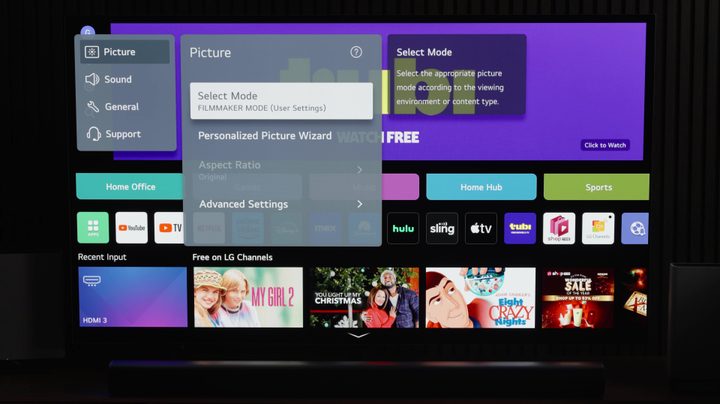
If you know what you’re doing when it comes to color settings, there are two Expert modes available. Otherwise, for everyday viewing of shows and movies, we recommend avoiding the Vivid, Standard, and Sports settings: All three tend to juice up the color too much, and the picture can start to look unnatural.
When adjusting TV brightness, remember to set it for both SDR (standard dynamic range) and HDR (high dynamic range).
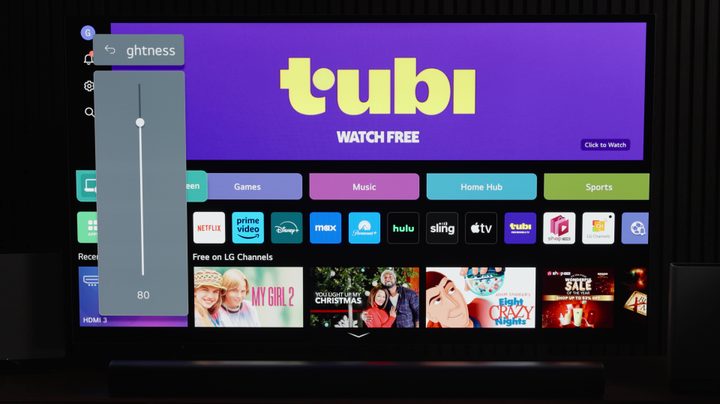
To set the brightness for SDR content, use your remote to go to the Home Screen, press the Settings button, and choose OLED Pixel Brightness. Whatever brightness adjustments you make here will be applied to all SDR content.
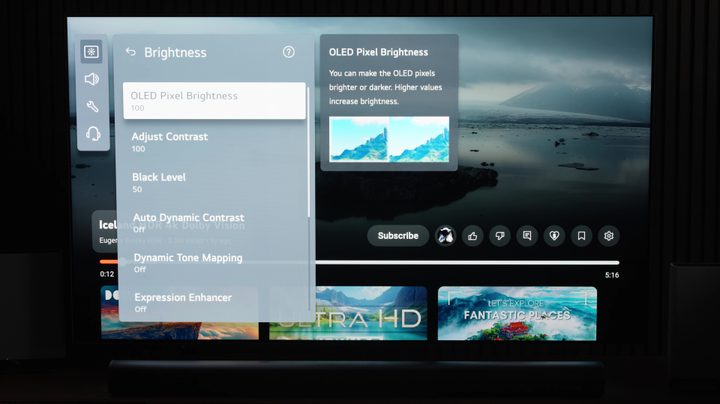
To adjust HDR brightness settings, you’ll want to play with some content that has HDR enabled, such as a show on a streaming service (if you’re unsure, YouTube is also an easy source — we’re big fans of Eugene Belsky’s content.) An indicator in the top right corner will show that you’re viewing HDR content.
From here, follow the same steps as adjusting brightness in SDR (you’ll notice that “Picture Mode” is now labeled “HDR Picture Mode”). Select your preferred level in OLED Pixel Brightness. The brightness adjustments you make here will be applied to HDR content.
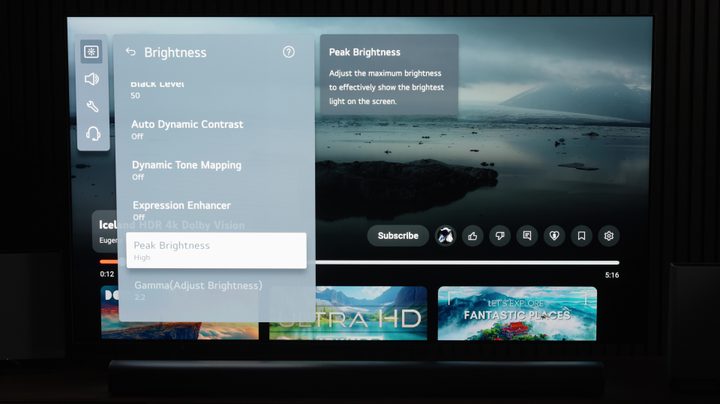
To get the most out of this TV, you can also change the Peak Brightness. From Settings select Picture, then Advanced Settings, then Brightness. Navigate down to Peak Brightness and set it to High. This setting adjusts the maximum light to be displayed on the screen, which affects the entire picture. You can also turn up the brightness to 100, as long as it’s not too much for your eyes to handle.
Get smoother movement, device connectivity
When it comes to motion smoothing, it’s pretty much a personal preference: You might notice it and you might not.
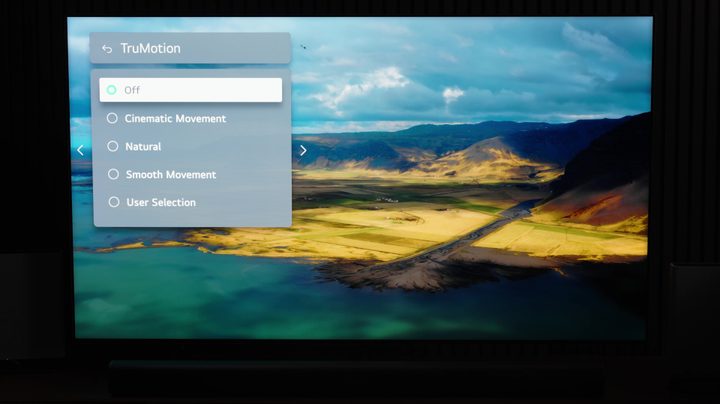
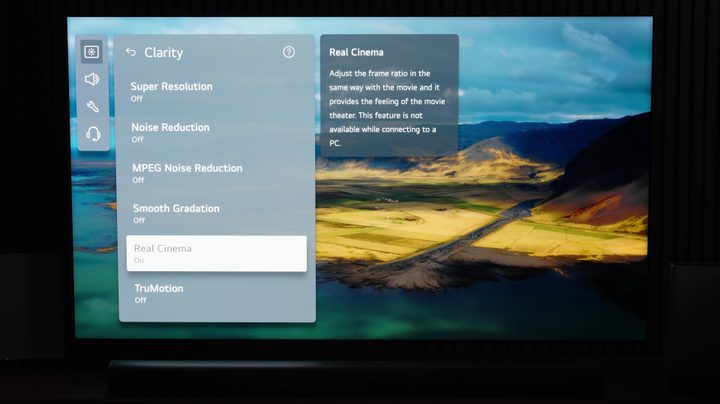
To make adjustments on your LG TV, start with the Advanced Settings menu. Select Clarity then head down to TruMotion, a feature designed to optimize image clarity and transition for fast-moving scenes. We recommend turning this Off. Instead, and especially for movies and shows, try turning on the Real Cinema setting, which adjusts the frame ratio according to the movie. Motion clarity is definitely subjective, so play around with it to find out what you like best.
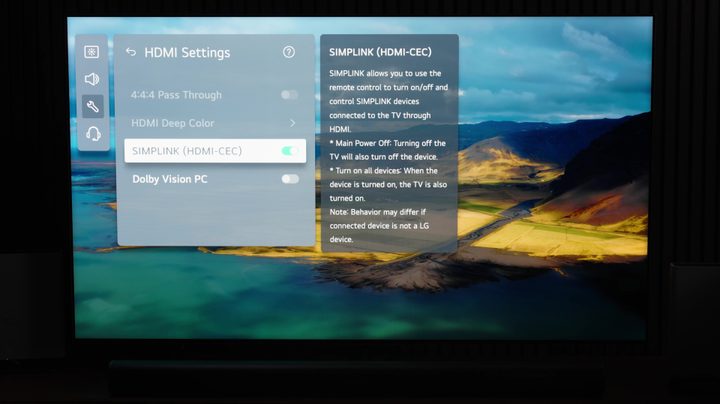
You can also change settings to make using external devices easier. If you’re adding a soundbar, Blu-ray player or gaming system, you can operate them quickly and easily through your TV by turning on HDMI-CEC. Press the Settings button on your remote, then the Settings cogwheel on the screen. Head down to General, then down to External Devices. Go to HDMI Settings and down to SimpLink HDMI-CEC and make sure it’s turned On. This will allow you turn devices on and off through your TV remote control.
With these adjustments, your LG TV will better meet all of your viewing preferences.
Have a different brand of TV and want to make similar adjustments? Most modern TVs have similar features to LG, however, they might be labelled differently, and it can get confusing. If you’re looking for Samsung, Sony, Hisense, TCL, or Panasonic, we have instructions for those, too.


