The Meta Quest 3 is an awesome VR headset with a fast processor and great mixed reality, but that doesn’t mean it’s free of trouble. Below, we’ve listed the most common problems and how to fix them so you can solve any issues and get back to gaming, browsing, or spatial computing with your Quest 3.
Reset the Quest 3 Boundary
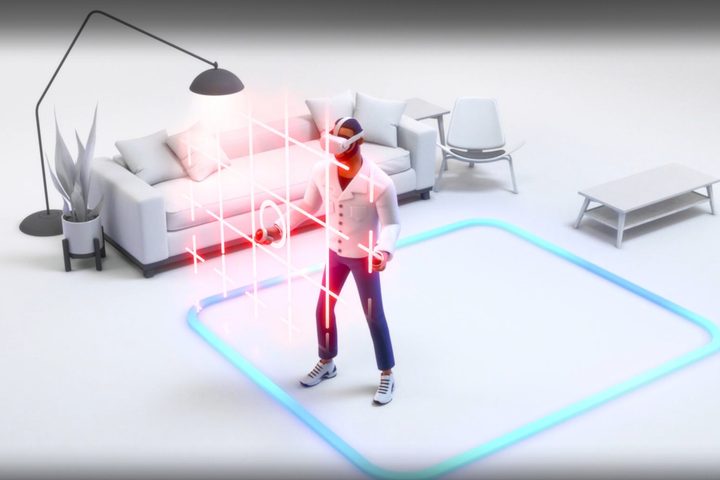
Meta keeps improving the spatial awareness of its Quest headsets. The Quest 3 includes a depth sensor that automatically scans your room to create a boundary.
The boundary, previously called the guardian, is a glowing grid that defines the area in your room that’s safe to move within when immersed in virtual environments. It’s no fun to punch your TV or crash into a table, so you need a boundary for VR. In mixed reality, that’s less critical.
If you move to another room, your Quest 3 usually identifies this and scans the new room to create a boundary that matches the new space. Walking up to the second story presents an interesting dilemma. You might see the glowing outline of your old boundary several feet below your current floor.
If your Quest 3 is confused about the boundary, you must create a new one. Open Quick Settings by selecting the Clock/Wi-Fi/battery icons at the bottom left. Choose Boundary and switch to a different mode than the current one. If you’re on Stationary Boundary, choose Roomscale Boundary and vice versa.
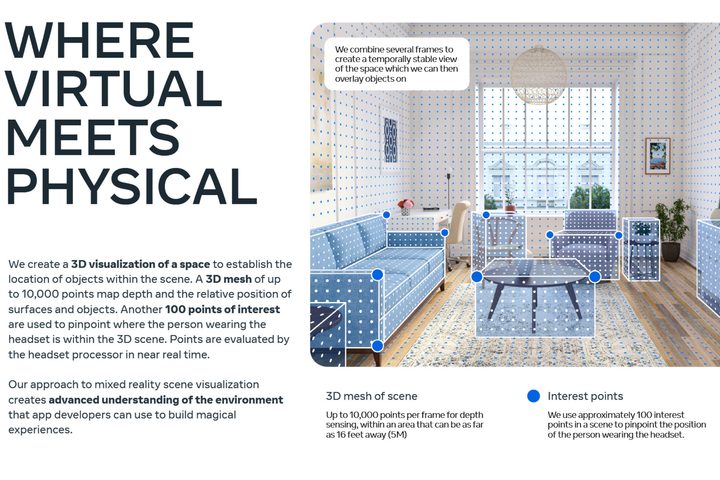
If your issue is a lost boundary, the only way to continue in VR is to make another. A detailed roomscale boundary with doors, windows, and furniture might take several minutes to recreate, but that’s the only solution if the Quest 3 game or app you’re using needs those roomscale features for mixed reality.
Lost tracking
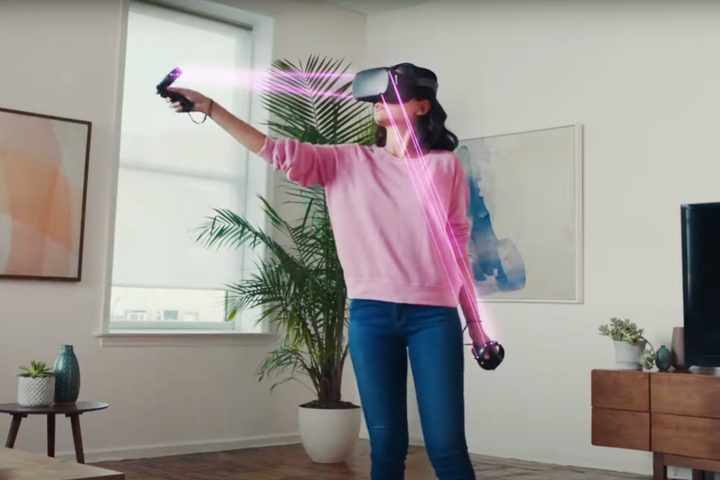
Another common problem is losing tracking. When that happens, your Quest 3 usually alerts you to the problem. If you notice your virtual environment getting out of sync with your movements, you should correct the tracking issue immediately to prevent motion sickness.
If the Quest 3’s tracking sensors don’t get enough light, the headset can’t see where it’s at in space. Turning on more lights or moving to a brighter room might help with tracking.
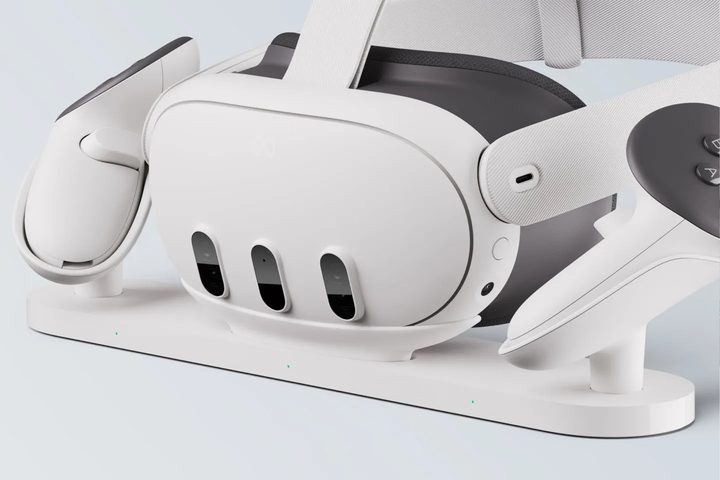
A smudged or dirty sensor might not be able to see even in a bright room. With a microfiber cloth, clean the three dark pill shapes on the front of your Quest 3. Also, wipe the two small circles under the bottom edge, one to the left and the other to the right side.
Your Quest 3 Touch Plus controllers have infrared LEDs that are invisible to human eyes. Cleaning your controllers can help with lost controller tracking. If the batteries in your controllers die, you’ll lose tracking as well.
Another reason for lost tracking could be an overloaded processor. That’s unlikely with the fast Qualcomm XR2 Gen 2 in the Quest 3, but did happen occasionally with older Meta Quest headsets. If your headset’s performance seems sluggish, take a break for 15 minutes to allow it to cool down, then try again.
Short battery life
When you’re having fun, watching a movie, or even getting work done in your Quest 3, it’s frustrating to get a low battery warning. The Quest 3, like the Quest Pro, Quest 2, and even the Apple Vision Pro, gets about two to two-and-a-half hours of battery life.
A Meta Charging Dock makes it easier to keep your Quest 3 headset and controllers charged and ready to go.
If you feel like that’s not enough, you can add a little more runtime by switching your Quest 3 into Battery Saver Mode. Your headset will try to conserve power without affecting performance too much.
Open the Settings app, then select System and Power. In that panel, switch on Battery Saver. Nota that the brightness will be lowered, display sharpness might drop, and reduced frame rates are likely.
The Quest 3 can refresh the display up to 120 frames per second (fps), while some of the best VR headsets only operate at 90 fps. That means a 75% reduction in processing is possible simply by lowering the refresh rate to 90 Hertz.
If 50% brightness is too dark, you can raise it in Quick Settings and Battery Saver will stay on to help in other ways.
Battery Saver helps, but the extra time you gain is measured in minutes, not hours. For a more useful battery upgrade, you’ll need an external battery.
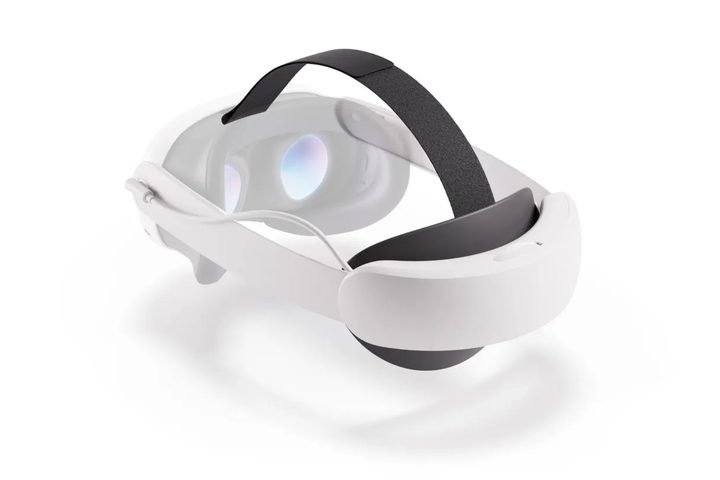
Meta makes several great Quest 3 accessories that are guaranteed to work with your headset. The Meta Quest 3 Elite Strap with Battery gives you another two hours of runtime and upgrades your head strap with a more comfortable and easily adjusted rigid halo strap.
The price is $130, so it’s worth shopping around. Kiwi offers several solutions at a lower cost. For even more power, you can get a battery belt from PrismXR.
Meta’s Quest 3 is a great VR headset that’s usually very reliable. On the rare occasion you have an issue, these tips should help fix any problems, so you get back to enjoying your virtual space again.