
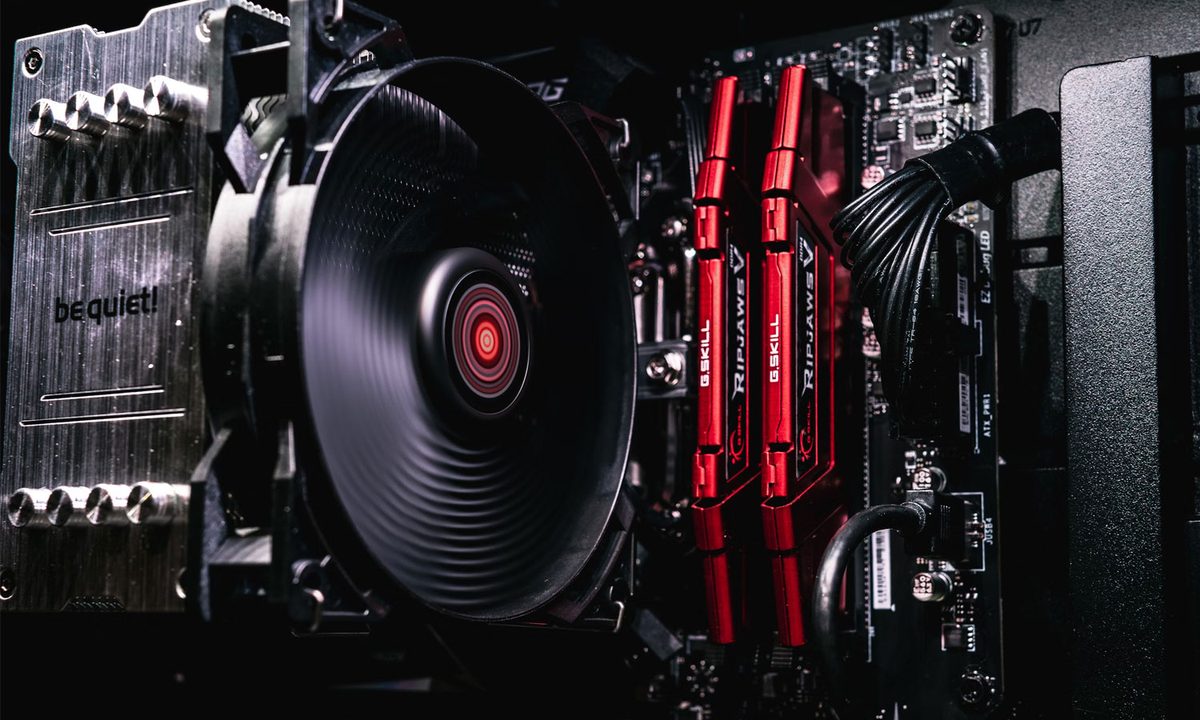
RAM is one of the easiest upgrades to do yourself. Installing RAM is also a great way to bump up your PC's performance and improve support for new and more demanding apps and games.
Once you have made sure you understand what RAM is, here's how to install new RAM modules quickly, easily, and safely.
Buying the right memory
Before you can install new RAM, you need to buy the right kind, and that is actually a little more tricky than installing it. Memory kits come in a range of different speeds, sizes, and generations, which can raise problems with compatibility and support if you buy the wrong type.
So, instead of throwing down cash on the first new RAM kit you find, confirm how much RAM you need, and check out our RAM buying guide to make sure that you're getting the right memory for your PC.
How to install RAM
Whenever you work inside your PC, be sure to wear an anti-static wristband, or periodically ground yourself by touching the case or the chassis of your power supply. Try to only work on your computer in rubber-soled shoes.
If you're new to the whole DIY PC-building world, this is a good tip whenever you have your PC open.
Step 1: Disconnect the power cable from your system and, if needed, unplug other back-panel cables so that you can safely lay your system on its side.
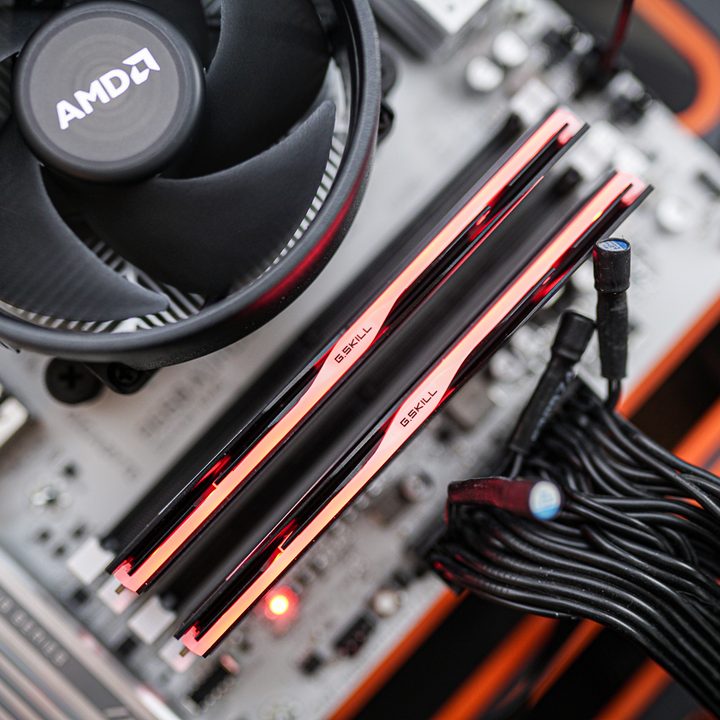
Step 2: Remove the side panel of the PC case (usually on the left) to gain full access to the interior. The motherboard is what every component of your computer is connected to, and the RAM slots are mounted on it. These are long and normally reside to the right of the processor and its chunky cooler. These slots typically number between two and eight, and include tabs (or wings) on each end, which lock the sticks into place. Press these tabs down toward the motherboard to eject and remove the old RAM.
Some motherboards only have a single tab. In that case, press the tab down and slide the RAM stick out, trying to keep it straight.

Step 3: Look in your motherboard's manual to determine the correct slots where your new memory should reside. Some motherboards prefer the second and fourth slots if you're only using one or two sticks. Others prefer the first and third. It's important to consult your motherboard manual here, as the slots determine how much bandwidth your RAM has.
If you cannot find the manual, go to the motherboard manufacturer's website and search for a downloadable PDF.
Step 4: You can only install RAM one specific way. Look at the side of the RAM stick with metal contacts and you'll see a notch that's not centered. You'll need to line that notch up with the notch — also not centered — inside the motherboard's memory slot. If they're reversed, the stick will not click in place.
Step 5: When you’re sure the RAM stick is lined up properly, press down on the edges with your thumbs until the stick locks into place. As it does, the wings clamp in and hold the memory securely.
If the stick doesn't click into place relatively easily, make sure you have the stick oriented correctly. Forcing RAM that's not lined up correctly can damage your motherboard. If in doubt, double-check. A flashlight can really help you see as well.
Installing RAM can take a decent amount of pressure, though. Don't force anything, but apply a good amount of pressure when pressing the stick down. If the motherboard is not adequately supported by its screws and flexes when you press, consider supporting it with a spare finger during installation to avoid the chance of it cracking.

Step 6: Once all sticks click into their slots, confirm that the wing clips are locked in to hold the sticks firmly in place. If everything passes inspection, close the PC. Next, plug all cables back in and boot the system.
Step 7: If your PC boots straight to Windows, congratulations, your memory install was successful. Now make sure to reboot your PC, enter the BIOS, and apply the XMP profile to run the kit at its best performance.
If your PC doesn't boot properly straight away, give it a minute or two. Sometimes modern PCs can take a while to configure the new memory. If you still can't get it to boot, though, you'll want to reset the CMOS by using the reset switch or jumper on your motherboard, or removing the battery. It might be that the memory settings your motherboard had loaded previously were not compatible with your memory.
Alternatively, you can try some of these motherboard fixes, or run some tests on your memory to check if it's faulty.


