
Is your Mac acting weird or crashing? Are the indicators and lights malfunctioning? Does it refuse to charge properly? Is the operating system acting sluggish? The answer to these problems could be an issue with your PRAM or SMC settings.
Sometimes these settings can get confused or tied in knots due to a variety of causes. When this happens, you can often set things right by returning them to their factory defaults. Below, we’ll show you exactly how it’s done.
Note: Resetting the PRAM and SMC is usually safe, but it’s not a guaranteed fix. Make sure you try basic rebooting and other troubleshooting first. Also, back up your data before you begin.
Reset PRAM/NVRAM
PRAM is short for Parameter Random Access Memory. It’s a type of memory that stores system settings in Macs, like the display resolution, the time zone, speaker volume, and so on. It’s similar to the CMOS used on Windows-based PCs, requiring a battery to keep the settings intact while the Mac is powered off. PRAM is used in older Macs.
NVRAM is short for Non-Volatile Random Access Memory. It has the same function, only it’s based on Flash memory technology, thus a battery isn’t required to keep data intact while the Mac is powered off. NVRAM is used in newer Macs.
If you’re experiencing issues, both can be reset to eliminate any possible problems. Keep in mind, however, that this doesn’t always immediately work. You may get a lingering gray screen as if your Mac isn’t sure what to do while you’re pressing the keys. This can happen due to a problem with your keyboard, and other attached devices.
If that happens, unplug all other accessories, make sure your keyboard doesn’t need new batteries, and try again.
Note: This will reset any customized settings that you may have, so a little re-tweaking may be required after logging back in.
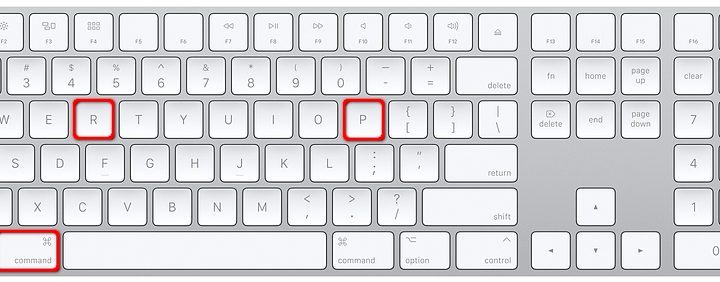
Step 1: Shut down your Mac.
Step 2: Press the Option + Command + P + R keys simultaneously.
Step 3: Release the keys. You’ll need to do so at different times depending on whether your Mac has a T2 security chip or not. Most Macs released after 2018 do.
- Macs without the Apple T2 Security Chip: After the second startup sound.
- Macs with the Apple T2 Security Chip: After the logo appears and disappears for a second time.
Step 4: After logging in, open System Preferences and adjust your settings if they were reset. These may include the time zone and display resolution.
Check to see if the problems that were plaguing your Mac still persist. If they’re gone, then resetting your PRAM/NVRAM worked.
Reset the SMC
The SMC (System Management Controller) controls various hardware settings to ensure your computer is operating at the top of its game. This one system will help conserve your laptop’s battery supply, distribute power, and control thermal energy. It also manages the LED sensors and sleep/wake modes that are activated when you close and open your MacBook.
If your SMC isn’t doing its job, your laptop is more likely to overheat or quickly deplete the battery because the hard drive was not put to sleep when you closed the cover. These issues don’t necessarily mean your laptop is on its last legs, because you can perform an SMC reset to help troubleshoot any bugs. There are different steps to restoring your SMC depending on what type of laptop or desktop you’re using, but all are processes you’ll be able to do on your own.
Note: It’s worth mentioning that any personalized settings will be eliminated during this procedure, so as soon as you perform the reset, you’ll need to reinstate whatever you customized.
Desktops
Step 1: Shut down the Mac and unplug the power cord.
Step 2: Wait 15 seconds and then plug the power cord back in.
Step 3: Wait another five seconds and then press the Power button.
Laptops (T2 Security Chip)
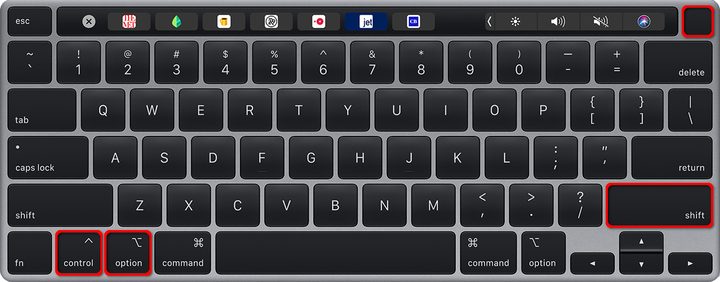
Step 1: Shut down the MacBook.
Step 2: Press and hold the Control + Option + Right Shift keys simultaneously.
Step 3: After seven seconds, press and hold the Power button while holding down the other three keys.
Step 4: Hold all four keys for another seven seconds and then release.
Step 5: Wait five seconds and then press the Power button.
Laptops (No T2 Security Chip, non-removable battery)
The following steps apply to these models:
- MacBook Pro mid-2009 to 2017
- MacBook Air 2017 and older
- All MacBook models except for the 13-inch model from mid-2009
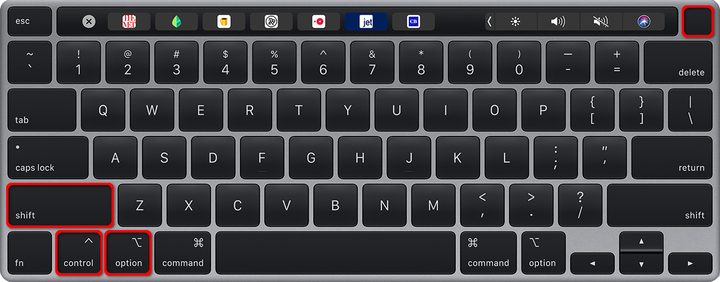
Step 1: Shut down the MacBook.
Step 2: Press and hold the Left Shift + Control + Option + Power keys/button for 10 seconds.
Step 3: Release all four and then press the Power button.
Laptops (No T2 Security Chip, removable battery)
The following steps apply to these models:
- All MacBooks and MacBook Pros from early 2009 and older
- MacBook 13-inch in mid-2009
Step 1: Shut down the MacBook.
Step 2: Remove the battery.
Step 3: Press and hold the Power button for five seconds.
Step 4: Reinstall the battery.
Step 5: Press the Power button.


