  1. Home
  2. Computing
  3. Apple
  4. Evergreens

How to use Big Sur’s Notification Center widgets

Add as a preferred source on Google
 

In Apple’s MacOS Big Sur, the Notification Center is the place where all your widgets and (unsurprisingly) notifications are housed. Normally hidden off-screen, it provides a quick and convenient way to catch up on any alerts you have received over the course of the day, as well as useful widgets like weather forecasts, your calendar, and more.

Recommended Videos

Notification Center has existed on Macs since 2012, but it has seen a big update with MacOS Big Sur. Now, your alerts and widgets are grouped together, simplifying the experience. That new layout means it all works a bit differently from previous years, but with our guide in hand, you will be up to speed in no time.

Step 1: Getting started with Notification Center

Notification Center in MacOS Big Sur
Image used with permission by copyright holder

To begin, click the date and time in the top-right corner of your screen. Notification Center will slide onto your display from the right-hand side. Scroll down to the bottom of the list of widgets and click Edit Widgets to start customizing.

Step 2: Edit existing widgets
Notification Center in MacOS Big Sur
Image used with permission by copyright holder

When you click Edit Widgets, the Notification Center customization screen will take over. It is divided into three columns: A search bar and list of available app widgets on the left, a preview of each widget in the center, and a view of your current Notification Center layout on the right.

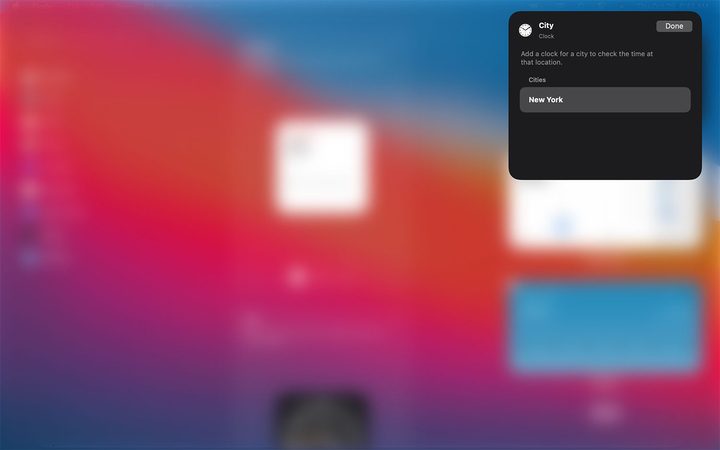
Hover over existing widgets in Notification Center and Edit Widget will appear under some of them. Click the widget and you can make changes like the set location of the weather or clock apps, for example.

Step 3: Choose a widget size

Notification Center in MacOS Big Sur
Image used with permission by copyright holder

Click an app on the left and you can see what each widget has to offer. Alternatively, you can find a specific app by using the search box in the top-left corner.

Like in iOS 14, some widgets have various sizes to choose from. The Podcasts app, for example, offers small, medium, and large widgets, each of which shows different amounts of information. When you click the S, M, or L buttons below each widget, you get a preview of what that size looks like.

Step 4: Add your chosen widget to Notification Center

Notification Center in MacOS Big Sur
Image used with permission by copyright holder

Once you have settled on a widget, hover over it and you will see a green “+” symbol appear. Click this and the widget is added to the bottom of the list of widgets in Notification Center. Alternatively, you can drag and drop the widget to any position in Notification Center.

Step 5: Rearrange your widgets

Notification Center in MacOS Big Sur
Image used with permission by copyright holder

Drag and drop is not just limited to adding new widgets — you can rearrange the widgets that are already in Notification Center by clicking and dragging them to a new position. As you do so, other widgets will move out of the way, giving you a clear idea of how the final layout will look. Notification Center will also show a translucent outline of the widget you are currently moving, showing you where it will “land” when you drop it into place.

Step 6: Finish up

Notification Center in MacOS Big Sur
Image used with permission by copyright holder

When you are happy with the new arrangement, click Done at the bottom of the right-hand column, or simply click on any area of empty space. This will take you back to your desktop, with Notification Center active on the right. Click anywhere else on screen or do a two-finger rightward swipe on Notification Center to dismiss it.

Alex Blake
Alex Blake has been working with Digital Trends since 2019, where he spends most of his time writing about Mac computers…
MacOS 27 could finally end Intel Mac support and bring smarter Siri upgrades
MacOS 27 rumors suggest Apple is ready to emotionally damage Intel Mac owners
MacOS

Apple’s next major Mac software update may mark the beginning of the end for Intel-powered Macs while also pushing deeper into AI-powered experiences. New rumors surrounding macOS 27 suggest Apple is preparing significant changes ranging from smarter Siri capabilities to refinements for its controversial “Liquid Glass” design language.

According to reports, macOS 27 could become the first version of macOS to substantially reduce or fully end support for Intel-based Macs, completing a transition Apple began in 2020 with the launch of its first Apple Silicon chips. While Apple has steadily shifted focus toward M-series processors over the past several years, macOS 27 may represent the clearest sign yet that the company is ready to leave Intel hardware behind. Although this is not new news - Apple was already looking to phase out Intel-powered Macs when it rolled out macOS Tahoe last year.

Read more
Meta’s AI feed is starting to sound like a late-night internet rabbit hole
Meta’s AI app is reportedly filling up with bizarre clickbait and fake stories
iPhone showing Meta AI Support Assistant

Meta’s standalone AI app is reportedly being flooded with low-quality clickbait, fake emotional stories, and engagement-bait content, raising fresh questions about how generative AI platforms are being moderated as they become increasingly social and public-facing.

According to a Verge report, users of Meta AI’s social discovery feed have been encountering strange AI-generated posts ranging from fabricated personal confessions to misleading health claims and bizarre fictional scenarios designed to attract reactions and shares. The issue appears tied to Meta’s decision to make AI-generated conversations and prompts publicly discoverable inside the app, effectively turning parts of the platform into a social media-style content feed.

Read more
Right to repair isn’t a hobbyist crusade. It’s a fight over ownership
A dying battery should not turn a paid-off device into company property again.
Repairing computers

The least sexy part of modern gadget design might also be the most revealing: the battery you’re not supposed to replace.

I understand the official story. Sealed phones look cleaner, feel slimmer, and can survive the kind of splash that ruins your week. Adhesives help make that possible, which is the respectable version of the argument. Nobody wants a flagship phone with the structural elegance of a TV remote from 2006.

Read more