
Slack isn’t just about connecting remote workers to a business. It’s about streamlining communication altogether, whether your team resides solely in the office or includes members scattered across the globe. Slack’s popularity derives from its ease of use and overall engagement, making it the leader in team collaboration. If you’re looking to understand how to use Slack and determine if it’s the right tool for you, you’ve come to the right place.
Overall, anyone can create a Slack workspace — it’s not just for corporations. Whether you’re a large enterprise, a small business, or a family that home-schools, you can get started with relative ease and quickly communicate with each other in no time.
Even more, Slack supports a multitude of popular apps that integrate services and features right into the Slack client. These include Asana, Trello, Google Drive, Zoom, Twitter, Dropbox, Outlook, and many more. It’s a foundation that links everything together into one informative platform accessed by users from any location with internet.
Slack is available as a web-based interface along with these downloadable formats:
- Windows 10 App (Microsoft Store)
- Windows Desktop Client (64-bit) (32-bit)
- MacOS App (Mac App Store)
- Mac Desktop Client (Slack)
- Linux App (Snap Store)
- Linux Desktop Client (64-bit) (32-bit)
- Android (Google Play)
- Apple iOS (App Store)
- Apple TabletOS (App Store)
Get started
Step 1: Go to slack.com/create to begin.
Step 2: Enter your email address followed by a six-digit confirmation code.
Step 3: Enter a name for your workspace and click Next to continue.
Note: By creating a workspace, you are the owner and administrator. Most of the following instructions apply to you, though some also apply to workspace members.
Slack layout

The Slack client comprises three main components from left to right:
- Workspace window bar (1) – All connected workspace windows listed in a vertical column.
- Sidebar (2) – All channels, direct messages, and apps associated with the current workspace windows (1).
- Message window (3) – The current chat window based on the thread, channel, or direct message that’s currently selected on the sidebar (2).
How to create a Slack channel
If you’re a member of a company workspace, you can only create a private channel by default. Workspace owners and administrators are the only individuals that can change this channel’s permissions.
For this guide, however, we created a workspace and have full access to establishing non-private and private channels. You can still use this method to create a private channel in a corporate workspace.
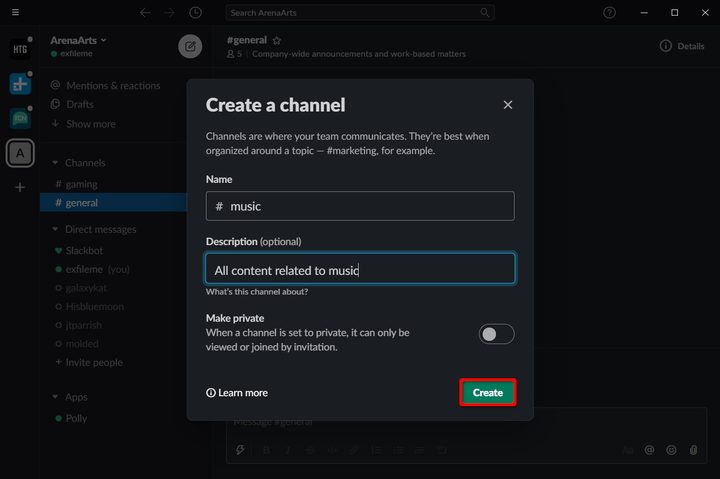
Step 1: Click the “plus” sign next to Channels listed on the sidebar.
Step 2: Click Create a Channel in the pop-up menu.
Step 3: In the following pop-up window, enter a name, an optional description, and click the toggle if you want to make the channel private.
Step 4: Click the Create button to complete.
How to make a Slack channel private
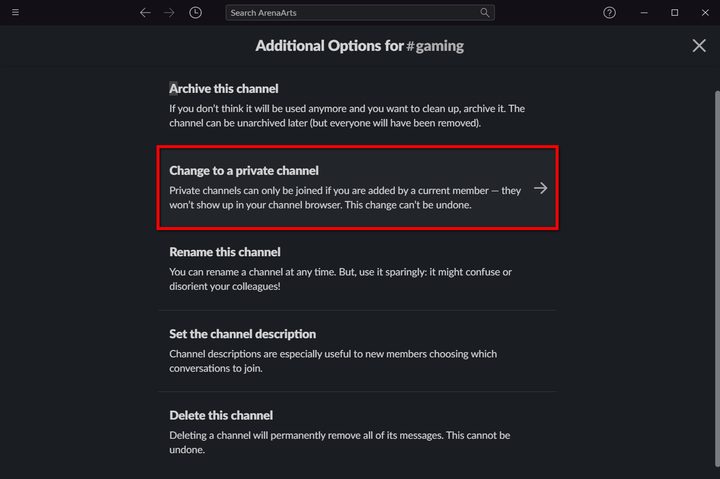
Slack accounts provide a public #general channel by default. You cannot make this private. You can, however, switch any channel you manually create over to private mode. Again, channels created by workspace members are set to private by default.
Step 1: Open the channel you want to make private.
Step 2: Click Details located in the top right corner.
Step 3: Click the three-dot More button in the roll-out menu.
Step 4: Select Additional Options in another drop-down menu.

Step 5: Click Change to a Private Channel on the following screen and then click the red Change to Private button. As the warning states, this cannot be undone.
How to delete a Slack channel
If you’re a workspace member, you cannot delete a channel. This must be performed by the workspace owner or administrator. Even more, you probably don’t have the Details panel to make changes.

Step 1: Open the channel you want to delete.
Step 2: Click Details located in the top right corner.
Step 3: Click the three-dot More button in the roll-out menu.
Step 4: Select Additional Options in another drop-down menu.
Step 5: Click Delete This Channel on the following screen.
Step 6: Click the box next to Yes, permanently delete this channel.
Step 7: Click the red Delete Channel button to complete. As the warning states, this cannot be undone.
How to join a Slack channel

This applies to all Slack users, whether you’re connected to a corporation or a home-school network. If your workspace only has two to three channels, however, you likely won’t even see a channel browser.
Step 1: Click Channels located on the sidebar.
Step 2: The channel browser appears on your screen.
Step 3: Highlight the channel you want to join and click Preview.

Step 4: Click the Join Channel button located at the bottom of the message pane.
How to leave a Slack channel

Step 1: Right-click on the channel you want to vacate.
Step 2: Select Leave Channel on the pop-up menu. Alternatively, you may see a Leave #ChannelName option instead.
How to create a poll in Slack
You can create a poll, even if you’re a workspace member. All you need is an app.
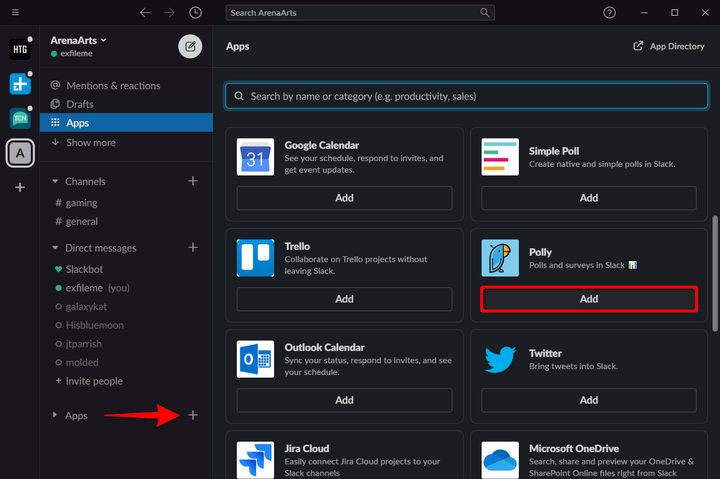
Step 1: Click the “plus” symbol next to Apps on the sidebar.
Step 2: The App Directory appears in the main message window. Click the Add button under Polly.
Step 3: In a new browser window, click the Add to Slack button followed by the Allow button.
Step 4: The Polly app messages you with instructions within the Slack client.
- /polly Enter your poll question? – Start a poll
- /polly survey – Start a survey
How to add emojis and change skin tone to Slack
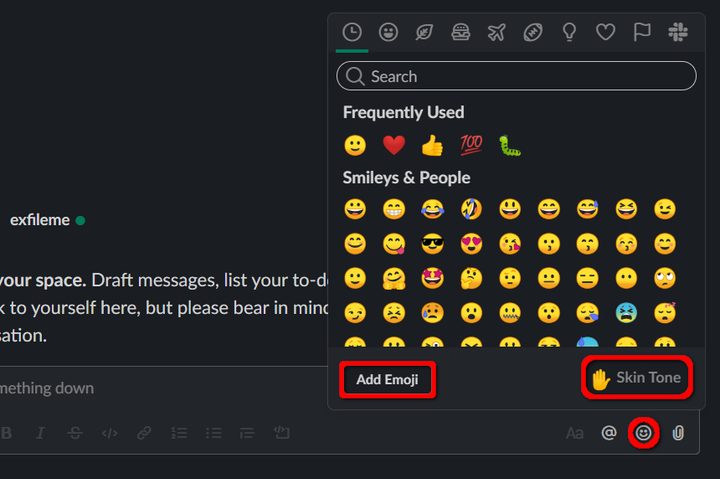
Step 1: With any channel open, click the smiley face located in the bottom right corner.
Step 2: Click the Add Emoji button on the pop-up window.
Step 3: Follow the directions to upload and name your emoji.
To change emoji skin tone, perform the following:
Step 1: With any channel open, click the smiley face located in the bottom right corner.
Step 2: Click Skin Tone on the pop-up menu.
Step 3: Select your default tone.
How to invite someone to Slack

If you’re the workspace owner or administrator, you can invite members and guests, depending on the plan. If you’re a workspace member, you can only request an invitation. Workspace owners and administrators will approve or deny the invitation.
Step 1: Click Invite People located near the sidebar’s bottom.
Step 2: Enter the email address and an optional name on the following pop-up screen. You can add multiple invites and/or pull from your Google Directory as well.
Step 3: Click the Send Invitations or Send Request button to complete.
How to snooze notifications in Slack

Step 1: Click the down arrow icon located next to the workspace name on the sidebar.
Step 2: Hover your mouse cursor over Do Not Disturb on the drop-down list.
Step 3: A rollout menu appears. Select or create a custom duration.
How to export a Slack conversation

This only works if you are the workspace owner or administrator.
Step 1: Click the down arrow icon located next to the workspace name on the sidebar.
Step 2: Hover your mouse cursor over Settings & Administration.
Step 3: A rollout menu appears. Select Workspace Settings.

Step 4: In a new browser window, click the Import/Export Data button located in the top right corner.
Step 5: Click the Export tab on the following page.
Step 6: Click the down arrow under Export Date Range, select a range, and click the Start Export button.
How to leave a Slack workspace

Step 1: Right-click on the workspace icon located to the far left.
Step 2: Select Sign Out of YourWorkspace on the pop-up menu.
You can re-add this workspace later by clicking the “plus” symbol in the workspace window bar.


