
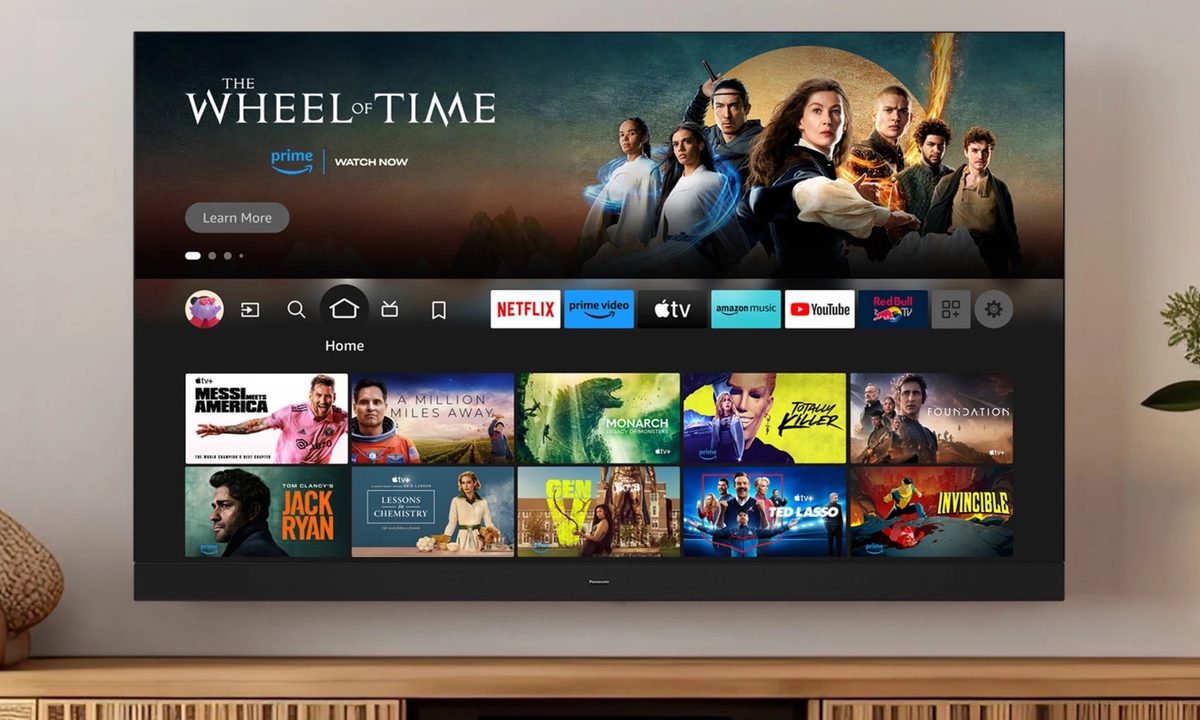
Your Amazon Fire TV device delivers access to gaming, streaming movies and shows, controlling your smart home devices, and more. While you can access all the best streaming services out there, it also means your kids can access everything inside those libraries. This can cause problems, as there is definitely content on those streamers you don't want your kids accessing without your permission.
That's where Amazon's parental controls come in. These controls restrict access to apps, keep your kids from downloading shows without permission, and ensures your kids aren't feasting their eyes on movies that aren't appropriate for their little eyes.
Here’s how to set up parental controls on your Amazon Fire TV to better protect your family — and wallet.
How to set up parental controls
Parental controls allow you to decide which kind of content or apps are not meant to be seen by your kids without permission. When you get started, you'll set a PIN which is then required for any purchases, or playing programs with certain age ratings. Just like any other PIN you want to choose a number that it easy for you to remember.
Once you've enabled parental controls your PIN will protect purchases, app launches, and will restrict viewing on content rated Teen and above on Prime Video.
Step 1: To set your PIN, on your Fire TV home screen, choose the Settings menu. It's the gear icon.

Step 2: Next, select Account & Profile Settings.

Step 3: Choose Parental Controls, then choose Parental Controls again on the next page. (The setting should be in the OFF position).

Step 4: Next, add a five-digit PIN for your Fire TV to require it for certain actions.
Step 5: Enter the PIN again to confirm the setting. Then choose OK.

Step 6: Once you have set up a PIN, you can configure the parental control settings according to your preferences. For instance, you can require the use of your PIN for any purchases made via Fire TV, including in-app purchases, games, and apps. Moreover, you can also require the use of a PIN to launch any of the installed apps. Be sure to memorize this PIN and restrict its access.
How to change your parental controls PIN
If you wish to change the PIN, you can do so at any time from the app, or from the Amazon website.
Step 1: Once again, navigate to Settings on the Fire TV home page, then choose Account & Profile Settings.
Step 2: Choose Parental Controls, then select Change PIN.
Step 3: Enter your existing PIN.
Step 4: Add your new PIN, then repeat this step to confirm.
Step 5: Alternatively you can change your pin by navigating to Amazon.com/pin.
How to change your parental controls
The parental controls inside of Amazon Fire TV have certain defaults, but you can change them at any time from within the app. This includes adjusting which ratings are locked behind a PIN, and whether a PIN protects your purchases, app launches, or the Amazon Photos app.
Step 1: Navigate to Settings on the Fire TV home page, then choose Account & Profile Settings.
Step 2: Select Parental Controls.
Step 3: From here you can fine-tune your parental controls. Select the option you want to edit.
Step 4: For most of the Parental Control options, selecting it will turn the option on and off. However if you select Viewing Restrictions you'll then need to select which ratings require a PIN to open.
How to turn off Parental Controls
If you've realized that you don't actually need parental controls on your Amazon Fire TV device, they're easy to turn off in just a few moments.
Step 1: Navigate to Settings on the Fire TV home page, then choose Account & Profile Settings.
Step 2: Select Parental Controls.
Step 3: Enter your PIN and your parental controls will be turned off.


