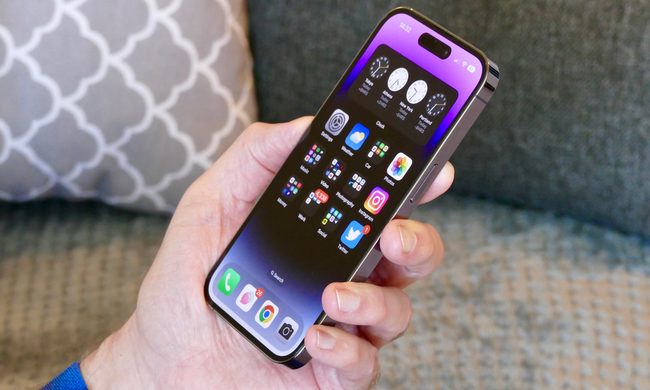
Apple and Google don’t need to build cars — there are enough local and foreign manufacturers that fill that role well. Instead, these two tech giants are excellent at building ecosystems and designing hardware that fits in your hand. The merging of the two — your smartphone and your car — was only inevitable.
Enter Android Auto and CarPlay. These two platforms aim to bring your touchy media, messages, and navigation to tablet-sized screens installed in the latest cars. Both mostly achieve the same purpose in their own unique way. But what makes them different? What makes them similar? Even more, which one is better?
We’re here to explain the Apple CarPlay versus Android Auto debate. Since more and more automakers are adding Apple CarPlay and Android Auto compatibility to their cars each year, you’ll want to know which platform is best for you.
For further information, read our guide on Apple CarPlay.
Further reading
The requirements
Apple CarPlay works on all phones ranging from the iPhone 5 to the iPhone 11 Pro. It also works with the first and second Gen iPhone SE. In total, 20 phones support CarPlay as of October 2020. CarPlay is built into iOS — it’s not an app.
Android Audio works on almost any phone with Android 6 or newer. All phones with Android 9 and older require drivers to download and install the Android Auto app. It’s included with Android 10 and newer.
How they’re similar
Despite the outward appearance, both Apple CarPlay and Android Auto reside on their respective phones. Drivers connect a compatible phone to a specific USB port, and iOS or Android sends the interface to the touch display. It’s similar to how a second screen is connected to a PC — only touch input data requires a USB connection.
For instance, in a Honda CR-V, the USB port resides in the center console under the armrest. There are actually two ports, but the data port is on the driver side while the other merely charges. This data port is a standard USB-A, requiring a USB-A to Lightning cable for an iPhone, and a USB-A to USB-C cable to a Samsung Galaxy Phone. Other Android phones may need a USB-A to-Micro USB cable.
Some newer cars support CarPlay and Android Auto over Bluetooth, eliminating the pesky cable. These are slowly rolling out, so check the vehicle’s manual to see if it supports this type of connection. On a basic level, Bluetooth provides hands-free functions like calls, texting, and Siri or Google Assistant interactions.
What the driver eventually sees on the screen heavily depends on the version of iOS and Android they’re running. But overall, both platforms deliver the same functions: Navigation and access to specific apps. If anything, both feel like managing a tablet, although as of iOS 14 and Android 10, Apple’s solution provides a cleaner and easier experience.
For instance, here is Apple CarPlay on a 2018 Honda CR-V display (with pesky lint included):

Now here is Android Auto on the same display:

Both platforms provide access to the following functions and services:
- Phone
- Music
- Maps
- Podcasts
- News
- Audiobooks
- Calendar
- Settings
- Exit button
- Any other third-party app that supports the platform
- A virtual assistant
To see a list of our favorite apps for these platforms, check out our Android Auto list and our CarPlay list.
How they’re different

As shown in the screenshots above, Apple CarPlay shoves the Dock over to the left. Here, you’ll see the phone’s wireless signal strength, the time, and the currently-active apps. Touch the symbol at the bottom to view widgets, like music controls, navigation buttons, and a map. Everything scrolls horizontally, just like on an iPad. If you ever used or have an Apple tablet, this will be familiar territory.
One major feature Android Auto lacks is the ability to change the overall appearance. This can be done through the car’s screen rather than on the iPhone. Drivers can change the wallpaper, switch to an always-dark mode, hide/show album covers, and hide/show suggestions.
However, adding and removing apps along with reorganizing their on-screen order is done on the iPhone. Open Settings > General > CarPlay > [Your Car] > Customize to remove or add apps. All supported apps appear under More Apps at the bottom. You can also drag active apps up and down the list to reorder the CarPlay lineup.


Unlike CarPlay, Android Auto can be modified through the app. All supporting apps appear on a single list — just tap the checkbox to the right of each app to remove it from the launcher. Any supporting app you install automatically falls under Hidden Apps and must be checked to see it on the screen. Apps can be listed in order with suggested apps highlighted at the top, or tap Custom Order to arrange the launcher as you see fit.


As shown above, the Android Auto Shelf resides at the bottom. The App Launcher icon sits to the far left, while the Notifications Center and microphone are on the far right. The multitasking widget at the center provides controls for the current app. Overall, the app menu scrolls vertically rather than horizontally, as seen with CarPlay.
One slight difference between the two is that CarPlay provides on-screen apps for Messages, while Android Auto does not. CarPlay’s Now Playing app is simply a shortcut to the app currently playing media. Android Auto tosses this out for a weather app, which surprisingly isn’t on CarPlay — you’ll need a third-party app for that.
Finally, you can access a few Google apps on CarPlay, but only one Apple app on Android Auto. Have a look:
| Android Auto | CarPlay |
| Apple Music | Google Maps |
| Play Books | |
| Play Music |
Siri versus Google Assistant
One of the biggest factors dividing Android Auto and CarPlay is the associated virtual assistants. Rather than rehash all these here, we provide a separate in-depth comparison between Siri and Google Assistant along with two others. The short version is that Google is information-first, whereas Apple is hardware-first. Google Maps and Google Assistant are more data-driven than the Apple-based competition, although Apple Maps and Siri are gaining ground.
What’s strange here is that Google Assistant is available on Apple devices, but Siri remains locked behind the iPhone, iPad, and so on. Both do a good job with basic functions like sending texts via voice, playing songs on demand, placing a call, and more. Ask both the same question, however, and Google Assistant will likely provide the answer, whereas Siri wants to suggest a website. Apple will never gain a foothold there while Google reigns as the search king.
Outside of media, calling, and texting control, navigation will likely be at the heart of your virtual assistant use. Apple may have the upper hand here due to its lockdown on hardware. Connect an iPhone to the car, strap on an Apple Watch, and you’ll have no trouble navigating the highways. Is it time for a turn? Siri will provide an early warning and ding the watch. For a similar experience with an Android phone, you’ll need to purchase a watch with Wear OS.
Both get the job done
Where you land on the spectrum between the two systems will depend completely on the type of phone you prefer. Both systems do a good job of their intended purposes, which is to offer enough smartphone functionality to be convenient without becoming a distraction. Well, they’re still distracting — a recent study found using CarPlay is more distracting than driving drunk.
Still, if you have an iPhone, there’s no reason to jump ship for Android Auto. Either system will get the job done — just be sure you’re saving some attention for the road ahead.