  1. Home
  2. Phones
  3. Mobile
  4. How tos

How to change app icon colors in iOS 18

Add as a preferred source on Google
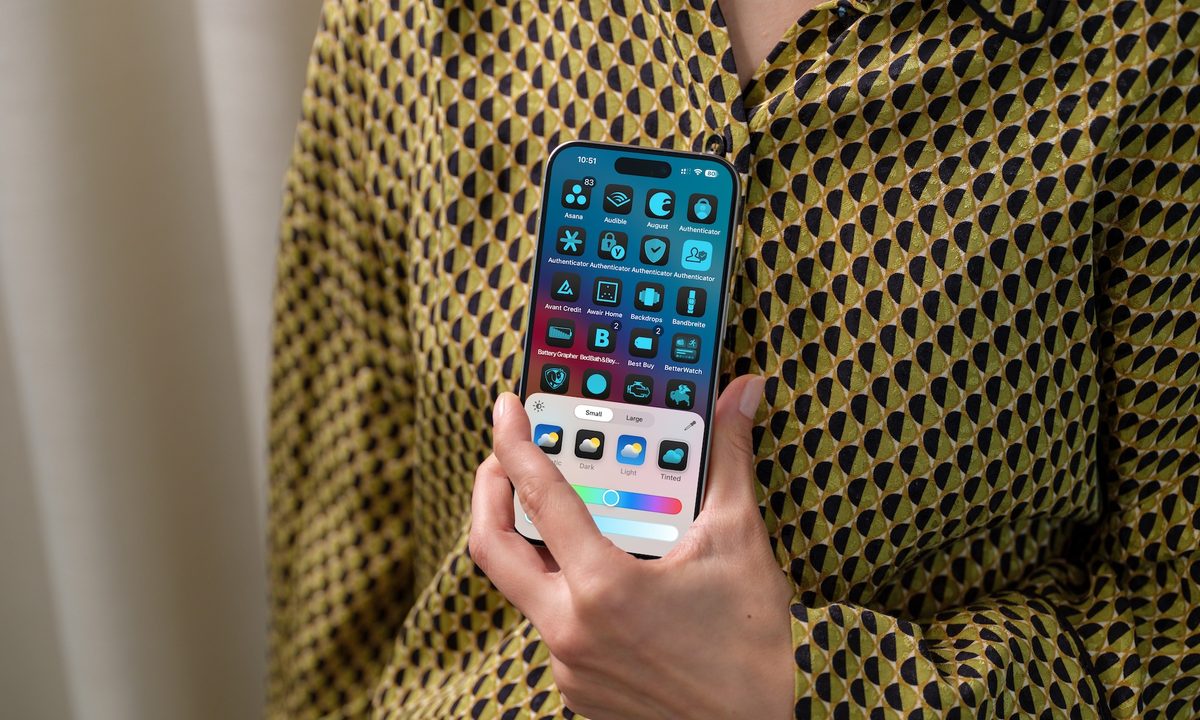
Person holding an iPhone showing new home screen customization tools on iOS 18.
Bryan M. Wolfe / Digital Trends

Apple has released iOS 18 to the masses, with the biggest feature of the update being Apple Intelligence. But the update also includes new customization tools, such as the long-awaited ability to change the appearance of icons on the home screen.

Recommended Videos

Difficulty

Easy

Duration

5 minutes

What You Need

  • Your iPhone

  • iOS 18

Home screen customization isn't entirely new to the iPhone, though iOS 18 builds upon it in pretty exciting ways — including the ability to change the color of your app icons. It adds a level of personalization not previously available on the iPhone, and it's a lot of fun to play with. Here's how it works.

How to change app icon colors in iOS 18

There are two ways you can adjust the appearance of icons in iOS 18. First, you can enable the icons to automatically adjust their appearance based on the time of day. Additionally, you can add colorful tints to the icons to match your style or mood.

Step 1: To enter Edit mode in iOS 18, press and hold on an empty area on your iPhone home screen until the icons begin to jiggle.

Step 2: Next, choose the Edit icon from the top-left corner.

Step 3: Choose Customize from the Edit menu.

Customization tools in iOS 18 on an iPhone 15.
Bryan M. Wolfe / Digital Trends

Step 4: To adjust the colors of the icons to match the time of day, tap Automatic.

Step 5: You can also select Dark so the icons are dark all the time, or Light so they remain lightly colored 24/7.

Customization of iPhone home screen on iOS 18.
Bryan M. Wolfe / Digital Trends

Step 6: There's also a Tinted option located next to Automatic, Dark, and Light. Tap on it to adjust the tint color for your app icons. You can use a slider to select the specific color and another one to adjust the intensity of the tint.

iOS 18 customization tools - changing the icon colors.
Bryan M. Wolfe / Digital Trends

Step 7: You can also use the eyedropper icon to adjust the colors of your iPhone icons to match a color on the existing background.

iOS 18 customization tools, changing icon color based on background.
Bryan M. Wolfe / Digital Trends

Step 8: One additional way to customize your iPhone home screen in iOS 18 is by making the icons larger. You can do this by once again going into the new edit mode. From here, toggle Large. As you can see, by doing so the icons on the home screen get larger and the words beneath them are removed. Select Small to return the icons to their regular size.

Changing iPhone icon size on iOS 18.
Bryan M. Wolfe / Digital Trends

And that's it! iOS 18's app icon customization tools may not be as exhaustive as what you'll find on an Android phone, but it does add another fun element to home screen customization. And now, you know how it works.

Bryan M. Wolfe
Former Mobile and A/V Freelancer
Bryan M. Wolfe has over a decade of experience as a technology writer. He writes about mobile.
Apple users are being targeted by a familiar tech support scam
Apple users face a new wave of fake iPhone and iCloud security warnings
iPhone user

AI has made online scams harder to spot by making deepfakes, voice cloning, and fake messages more realistic. Even so, the old tech support scam is still catching victims. For years, fraudsters often posed as Microsoft support workers. Now, reports suggest many are shifting their attention to Apple users.

Consumers are reporting a rise in fake “Apple High Alert” messages that claim an iPhone, iCloud account, or Apple ID has been compromised. These messages are designed to make people panic and react quickly before they can stop to check whether the warning is real.

Read more
iOS 27 puts a much better dictation experience on your iPhone, and you must enable it
A better dictation system is already on your iPhone. Apple just didn't switch it on.
Electronics, Phone, Mobile Phone

If you have an iPhone 17 Pro, iPhone 17 Pro Max, or iPhone Air running iOS 27 beta, you have a meaningfully better dictation system on your device right now. 

However, Apple did not turn it on by default, and most users have no idea it is there.

Read more
I’ve tried nearly every iOS 27 feature, and these 3 are why I’m still excited about the update
Electronics, Mobile Phone, Phone

It's been a little over a week since Apple's WWDC keynote, and the iOS 27 beta is already out in the wild. While Apple spent plenty of time talking about its Gemini-powered Siri, the thing I was most excited about was getting the update onto my iPhone 16e and seeing what it was actually like to live with.

I've been using the beta every day since then, and one thing has become pretty clear: not every new feature lived up to the hype for me. Some felt more interesting during the announcement than they do in everyday use, while others simply haven't found a place in my routine. But a few features have been the complete opposite. They're the ones I've found myself returning to again and again without even thinking about it. After spending more than a week with iOS 27, these are the three features that have stood out the most — and the biggest reason I'm still excited about this update.

Read more