

Most cell phone carriers offer generous upgrade plans nowadays, making it easy to snag the latest iPhone without dropping tons of cash. The official upgrade process at the majority of retailers includes a factory reset step, ensuring all your data is wiped clean and preventing any subsequent users from accessing your files.
However, if you're looking to sell your device on your own, you'll need to know how to reset your iPhone and wipe it clean. It's also good to know how the process works before heading to AT&T or Verizon for an upgrade — that way you can be certain your personal data is safely removed from your old phone. Thankfully, the process is similar across all modern iPhones, including the new iPhone 15. Here's how to reset your iPhone and wipe its drive before giving it away.

The difference between a soft reset, a force restart, and a factory reset
Restarting your iPhone using the software option — a soft reset — will not result in the loss of any data. The same is true of a force restart, which allows you to use the hardware keys to restart your iPhone when the touchscreen isn’t responsive or your apps start acting weird. A factory reset is a completely different beast. It reverts your iPhone to its original state when it first came out of the box: It wipes all content, settings, and personal information from the device.
We recommend factory resetting your iPhone only as a last resort if you’re having issues that you can’t solve, but it should also be used when you’re selling or trading in your iPhone, giving it to a friend, or if the phone has been lost or stolen. It’s not necessarily permanent, since you can use a backup to restore all your phone's data and settings. If you need to perform a factory reset, read our guide on how to factory reset an iPhone, which also includes a breakdown of the reset options found in Settings > General > Reset.

How to soft reset your iPhone 15 and other models
The easiest way to soft reset your iPhone is by turning it off. This method is often called a “soft reset” because, unlike a factory reset, you will not lose any data, and it will not delete anything from your phone. Consider a soft reset when your phone is running slowly, if an app won't launch or work properly, or if you are experiencing a minor problem but your iPhone is still responsive. Apple changed how to perform a soft reset on the X, 11, 12,13, and 14 series iPhones, where a soft reset requires you to hold down two buttons. That process also carries over to reseting your iPhone 15. All you’re doing here is turning your phone off.
Step 1: Press and hold the Sleep/wake button and the Lower volume button. On the iPhone X and later models, you’ll find the sleep/wake button on the right side of the phone.

Step 2: Rest your finger on the Slide to power off slider that appears, then swipe to the right.

Step 3: Once there is nothing on the screen and it goes black, press and hold the Sleep/wake button again until the Apple logo appears to turn it back on.
If you’re using an iPhone SE or an iPhone 8 or earlier, you can shut down your iPhone simply by holding down the Sleep/wake button until the slider appears.
Alternatively, provided you have iOS 11 or later installed, you can go to Settings > General and scroll to the bottom, where you’ll find the Shut down button. When you tap Shut down, you will see the Slide to power off slider. You can then proceed to step 2 above.

How to force restart your iPhone
Another way to reset your iPhone 15 or older models is to do what Apple officially calls a “force restart.” Once again, no important data will be lost. A force restart is recommended when your iPhone is completely unresponsive. For example, your iPhone screen turns black (despite it being powered on), the screen freezes, or your iPhone encounters an issue during startup. The exact way to perform a force restart depends on which iPhone model you own.
Force restart for iPhone 8 and later
The following steps will work for the iPhone 8, iPhone SE (2nd generation and later), iPhone X, iPhone XS, iPhone 11, iPhone 12, iPhone 13, iPhone 14, and iPhone 15.
Step 1: Press and quickly release the Volume up button.
Step 2: Press and quickly release the Volume down button.
Step 3: Press and hold the Sleep/wake button until you see the Apple logo.

Force restart for iPhone 7 and iPhone 7 Plus
Press and hold the Sleep/wake and Volume down buttons until the Apple logo appears

Force restart for iPhone 6S or earlier and iPhone SE (2016)
Press and hold the Sleep/wake and Home buttons together until the Apple logo appears.

What to do if a restart doesn’t work
If your phone is unresponsive or failing, you can try entering recovery mode, which should let you update or restore your phone. However, if you can’t get past the Apple logo or if your phone just won’t respond, there is another option.
While this may be your only option to save your phone, this procedure will delete everything you previously had on your phone. Hopefully, you followed our guide on how to back up your iPhone so you can recover your data after you erase your iPhone. Here’s how to enter recovery mode.

What to do if a restart doesn’t work for your iPhone 8 and later
Step 1: Connect your iPhone to your computer and open iTunes. If you’re on a Mac with macOS Catalina or later, open a Finder window.

Step 2: Press and quickly release the Volume up button.
Step 3: Press and quickly release the Volume down button.
Step 4: Press and hold the Sleep/wake button until you see the recovery mode screen appear.

Step 5: In iTunes or Finder on your computer, choose to update or restore your device to begin resetting your iPhone.
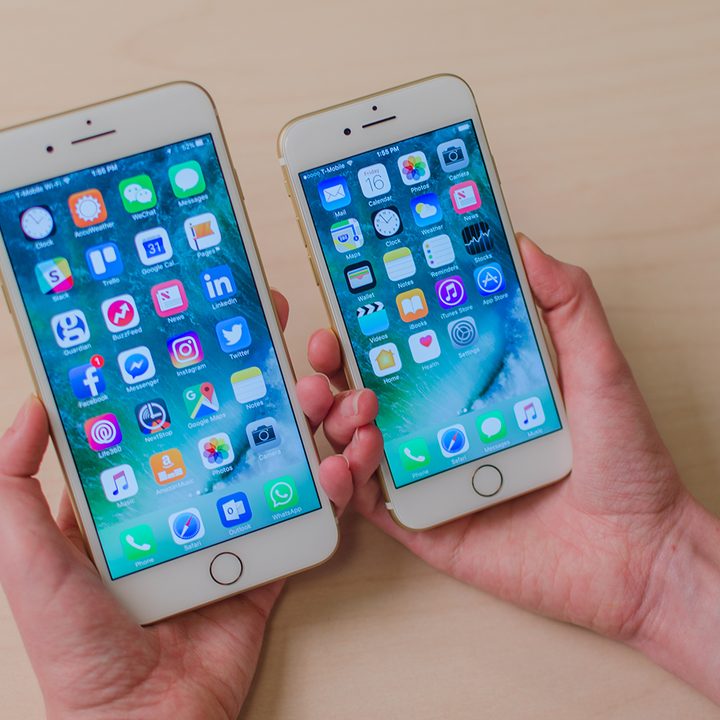
What to do if a restart doesn’t work for the iPhone 7 and iPhone 7 Plus
Step 1: Connect your iPhone to your computer and open iTunes. If you’re on a Mac with macOS Catalina or later, open a Finder window.
Step 2: Press and hold down the Sleep/wake button and the Volume down button at the same time until you see the recovery mode screen appear.
Step 3: In iTunes or Finder on your computer, choose to Update or Restore your device to begin resetting your iPhone.
What to do if a restart doesn’t work for iPhone 6S or earlier and iPhone SE (2016)
Step 1: Connect your iPhone to your computer and open iTunes. If you’re on a Mac with macOS Catalina or later, open a Finder window.
Step 2: Press the Sleep/wake button + Home button simultaneously until you see the recovery mode screen appear.
Step 3: In iTunes or Finder on your computer, choose to Update or Restore your device to begin resetting your iPhone.
As you can see, there are different ways to go about rebooting your iPhone if you're having issues or just want to give it a restart every now and then. While the process has changed depending on the model of iPhone that you have, it's all still relatively simple. We've laid out the different methods for you here, but always try a soft reset or a forced restart first — the update/restore method is basically when all else fails.
Editors' Note: This article was checked on February 19, 2024, and DT confirmed that the steps and information included remain accurate.


