  1. Home
  2. Wearables
  3. Mobile
  4. How tos

WatchOS 10: how to add widgets to your Apple Watch

Add as a preferred source on Google
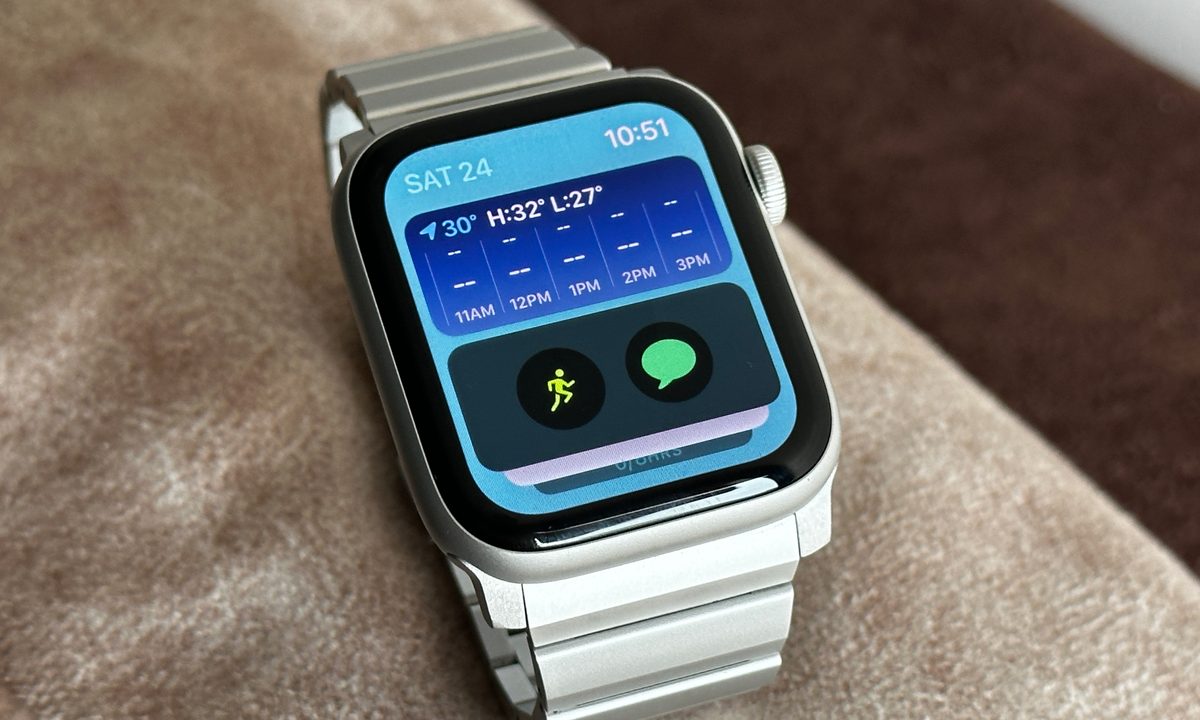
Apple Watch SE with widgets screen.
Prakhar Khanna / Digital Trends
Promotional logo for WWDC 2023.
This story is part of our complete Apple WWDC coverage
Updated less than 6 days ago

WatchOS 10 is a welcome update for Apple Watch users. It not only adds new good-to-have features but also gives more functionality to the Apple Watch. One of these features is widgets that allow you to see information like the weather, calendar appointments, and more at a glance on your Apple Watch. These are immensely useful when you need to see such information on the go without needing to pick up your iPhone.

Recommended Videos

Difficulty

Easy

Duration

5 minutes

What You Need

  • An Apple Watch running watchOS 10

As mentioned above, Apple Watch widgets are part of Apple's watchOS 10 update. You can download watchOS 10 now if you want, but the software is currently a developer beta — and that means it's very buggy. You're probably better off waiting for the public beta later in the summer or the full release this fall, but if you do download watchOS 10 now and want to use the new widgets, this is how they work.

How to add watchOS 10 widgets to your Apple Watch

When you install watchOS 10, you get access to Weather, Compass, Activity, and Workout app widgets by default. But you can add more with a few taps. Here's how you can add widgets to your Apple Watch.

Step 1: Unlock your Apple Watch.

Unlock your Apple Watch.
Prakhar Khanna/Digital Trends

Step 2: Swipe up to access the widgets menu, and you'll see the pre-installed widgets.

Swipe up to access the Widgets menu and you'll see the pre-installed widgets.
Prakhar Khanna/Digital Trends

Step 3: Long press on one of the pinned widgets.

Long press on one of the pinned widgets.
Prakhar Khanna/Digital Trends

Step 4: You will see a new menu with a + icon and a list of widgets.

You will see a new menu with "+" icon and list of widgets.
Prakhar Khanna/Digital Trends

Step 5: You might need to remove one of the pre-installed widgets to add a new one. To do this, tap on the top right corner of the widget to unpin it and tap on the - sign in the top left corner to remove it.

You might need to remove one of the pre-installed widgets to add a new one. To do this, tap on the top right corner of the widget to unpin it and tap on the "-" sign on the top left corner to remove it.
Prakhar Khanna/Digital Trends

Step 6: Tap on the + icon to add a new widget.

Tap the "+" icon to add a new widget.
Prakhar Khanna/Digital Trends

Step 7: Tap on the widget you want to add. Reposition it by holding and dragging it, and tap on Done at the top right corner.

Tap on the widget you want to add and tap Done.
Prakhar Khanna/Digital Trends

All the widgets available in watchOS 10

With watchOS 10, you get access to a lot of widgets. You can choose from the following:

  • Activity
  • Alarms
  • Astronomy
  • Audiobooks
  • Calendar
  • Compass
  • Heart Rate
  • Medications
  • Mindfulness
  • Music
  • Noise
  • Now Playing
  • Podcasts
  • Reminders
  • Shortcuts
  • Sleep
  • Stocks
  • Stopwatch
  • Timers
  • Tips
  • Wallet
  • Weather
  • Workout
  • World Clock

This list is bound to keep growing as more developers support the feature, but even this early on, it's a very strong start.

Your Apple Watch is now more powerful with watchOS 10. But Apple Watch Series 3 won't get the upcoming watchOS update, and Apple Watch Series 4, Series 5, and first Generation SE will miss out on the Time in Daylight feature to help parents to keep track of their kids spending time in the sun.

Other than that, most of the new features will roll out to Apple Watch Series 4 and later — including the new widgets.

Prakhar Khanna
Prakhar Khanna is an independent consumer tech journalist. He contributes to Digital Trends' Mobile section with features and…
Samsung may shelve the Galaxy Watch Classic this year, regular and Ultra could get new colors 
Samsung's July Watch reveal just got a lot more predictable, and that's not entirely good news for everyone.
Using Gemini on Galaxy Watch 8 Classic.

Samsung is gearing up to reveal the Galaxy Watch 9 and Galaxy Watch Ultra 2 at its July event, along with its next-generation foldable smartphones, and a fresh batch of leaks from @GalaxyTechie on X (via 9to5Google) has just handed us a clearer picture of both. 

Samsung fans hoping for a Classic with a rotating bezel this year might be in for disappointment, but those eyeing the regular or Ultra versions could be in for a surprise. 

Read more
Apple clears the air on watchOS 27 skipping multiple models, and you can partly blame AI for it
Siri AI on watchOS 27 needs muscle your older Apple Watch doesn't have.
WatchOS 27 running on Apple watches

Apple Watch got its biggest software update in years with watchOS 27, but it’s skipping five models to get there. 

If your watch isn't on the compatibility list, Apple offers an explanation that may sound reasonable, but it doesn’t make the pill any easier to swallow. 

Read more
Ultrahuman brings affordable continuous glucose monitoring to US consumers
Ultrahuman wants you to know exactly what that donut did to your body
Ultrahuman M2 Live

Ultrahuman has announced the launch of M2 Live in the United States, expanding access to continuous glucose monitoring and metabolic health insights for consumers without diabetes. The new platform integrates glucose data from Abbott's over-the-counter Lingo continuous glucose monitor (CGM), allowing users to track their metabolic health without requiring a prescription.

The launch represents a significant step for the company, which helped popularize glucose monitoring for wellness-focused consumers when it introduced its first metabolic tracking platform in 2021. With M2 Live, Ultrahuman is aiming to make the technology more affordable and accessible, with subscriptions starting at $99 per month and individual sensors priced at $129.

Read more