
Apple’s mobile operating system, iOS 13, hit the scene in September 2019. As usual, it was packed with Apple’s latest tweaks and enhancements, but it also introduced a host of new features, including the long-awaited Dark Mode. This update brought with it a selection of worthwhile advancements, but you’ll need to update your device to iOS 13 before you’re able to work with them.
iOS 13 has, of course, been superseded by iOS 14 and even iOS 15, but if you’re updating an older iOS 12 device, you may still need to download it. Here’s how you can update your iPhone or iPod Touch to iOS 13.
Note: For the first time in Apple’s history, the iPad went its own way and will no longer be tied to iOS. As such, iPads did not receive iOS 13. Instead, the iPad now has its own OS called iPadOS, and we’ve written a separate guide on how to download iPadOS.
Compatible devices
First, make sure your device is capable of running iOS 13. While Apple is noted for supporting older devices with new software updates, some older iPhones that were eligible for iOS 12 did not receive iOS 13. The following iPod Touch and iPhones support iOS 13:
- iPhone 11
- iPhone 11 Pro
- iPhone 11 Pro Max
- iPhone XS
- iPhone XS Max
- iPhone XR
- iPhone X
- iPhone 8
- iPhone 8 Plus
- iPhone 7
- iPhone 7 Plus
- iPhone 6s
- iPhone 6s Plus
- iPhone SE
- iPod Touch (7th generation)
Unfortunately, this means that if you’re using an iPhone 6 or earlier model, you’re stuck on iOS 12.
Technically, the iPhone 12 series — including 12 Mini, 12 Pro, and 12 Pro Max — and the newer models are all capable of running iOS 13. However, since they come with iOS 14 and iOS 15 out of the box, you will not be able to downgrade them to iOS 13. We provide more details on why this is the case in the final section of this article.
Back up your iPhone or iPod Touch
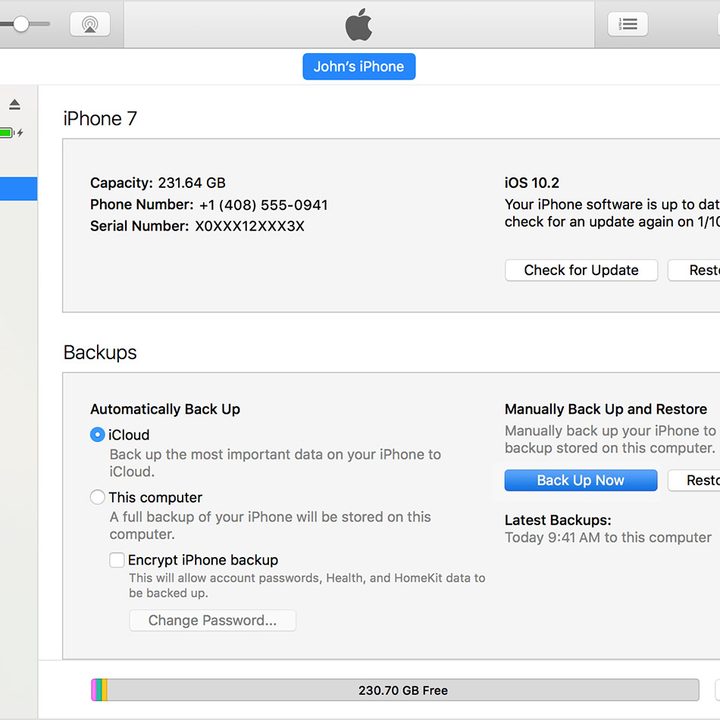
Backing up your device is strongly advised before installing any update, even for released builds. Backing up your data ensures that it will be easy to restore your device if something does go wrong.
You can update your iPhone or iPod Touch using Apple’s iCloud, or by connecting your device to a Mac or PC via iTunes.
Backing up using iCloud
Using iCloud is probably the easiest way to back up your device. Here’s how to do it:
- Connect to a Wi-Fi network.
- Head to your Settings app, then select your name and tap iCloud. If you’re on iOS 10.2 or earlier, you’ll have to scroll down and tap iCloud.
- Scroll down and tap iCloud Backup > Back Up Now. If you’re on iOS 10.2 or earlier, just tap Backup.
You can check whether the backup is complete by heading back to Settings, hitting iCloud > iCloud Storage > Manage Storage, and tapping on your device from the list.
Backing up on a Mac running MacOS Catalina or later
MacOS Catalina finally nixed the classic iTunes and swapped it with a separate app for Books, Podcasts, and Music. That said, you could still definitely back up any of your iOS products with the Catalina and even the Big Sur operating system. There are a few steps to follow:
- Connect your iPhone or iPod Touch to your Mac and make sure it is up to date.
- Follow any on-screen instructions if you need to enter your device passcode or Trust This Computer.
- Open your Finder app and select your iPhone from the sidebar.
- Hit the General tab, then click Back Up Now to manually back up to your Mac.
Backing up on a Mac or PC with iTunes
For the Mac or Windows PC owners who still have older model computers, iTunes is likely still on your device. You can continue to use the app to back up your iPhone or iPod Touch. Check out the following steps:
- Make sure your iTunes is up to date and connect your device.
- Follow any on-screen instructions if you need to enter your device passcode or Trust This Computer.
- Select your iPhone or iPod Touch in iTunes.
- Hit Back Up Now to save your data.
Downloading and installing iOS 13 on your iPhone or iPod Touch

There is a straightforward way to download and install iOS 13 on your iPhone or iPod Touch. You’ll need to download the program over the air, though.
- On your iPhone or iPod Touch, head to Settings > General > Software Update.
- This will push your device to check for available updates, and you’ll see a message that iOS 13 is available. Tap Download and Install.
- The update will take a while to install, and you can’t use your device while it’s updating.
Downloading and installing iOS 13 through iTunes on your Mac or PC
If you don’t want to download anything straight to your phone or iPod, you can still update your device with iOS 13. You’ll just have to do it through iTunes on your Mac or PC.
- Make sure you’ve updated to the latest version of iTunes.
- Connect your iPhone or iPod Touch to your computer.
- Open iTunes, select your device, then click Summary > Check for Update.
- Click Download and Update.
Downloading iOS 14
As per custom, Apple released iOS 14 in September 2020. Previously, you could downgrade iOS update if the newer operating system wasn’t to your taste — for example, from iOS 12 to iOS 11. But that’s stopped with iOS 14. If you have already installed iOS 14 on your device and don’t like the features, you cannot downgrade to iOS 13. Apple introduced a change in iOS 13 that limited iPhones to only install versions of iOS signed by Apple.
We have a full guide on how to download iOS 14, including a full list of compatible devices.
Downloading iOS 15
The newest version of iOS, iOS 15, is now available to download. The update process for iOS 15 is pretty much the same as for iOS 13, but we have a full guide on how to download iOS 15, including a full list of compatible devices and instructions for backing up your device.


